iOwnIt Mobile Quick Start Guide
A visual walkthrough of getting started with iOwnIt on mobile.
1. Create your account
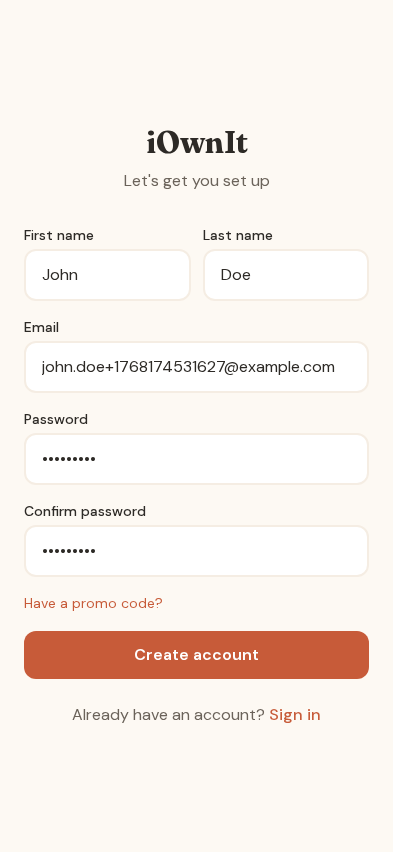
Start by creating your account with your name, email, and password.
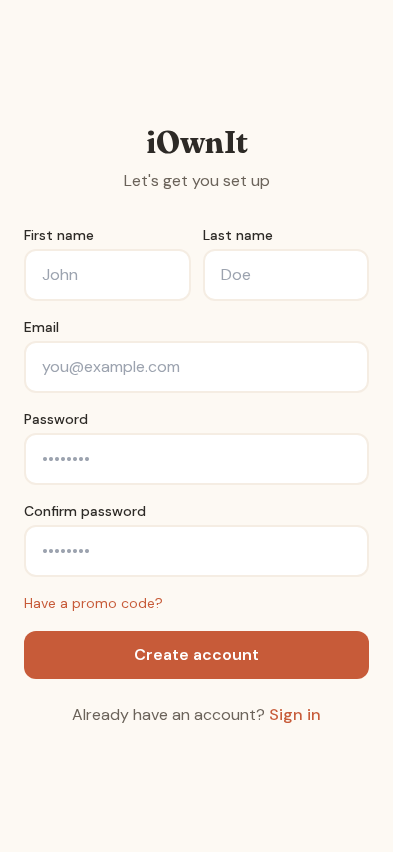
Fill in your details and tap Create account.
2. Welcome
You're in! The onboarding will guide you through setup.
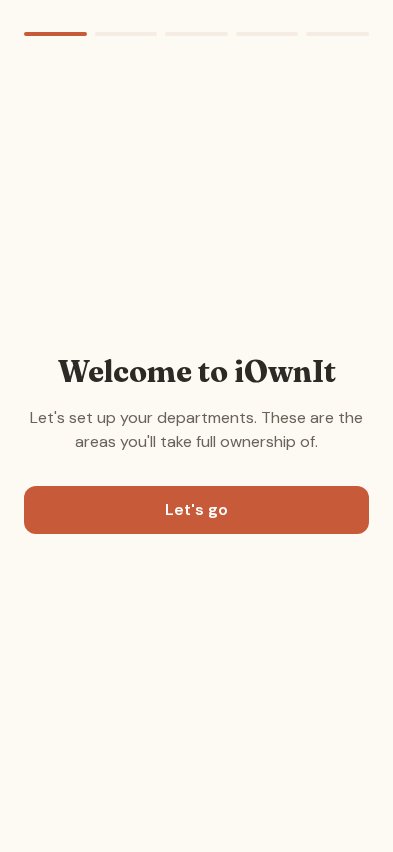
Tap Let's go to continue.
3. Choose your mode
Select how you'll use iOwnIt:
- Solo - Track your own responsibilities
- Create Household - Set up and invite a partner
- Join Household - Join an existing household
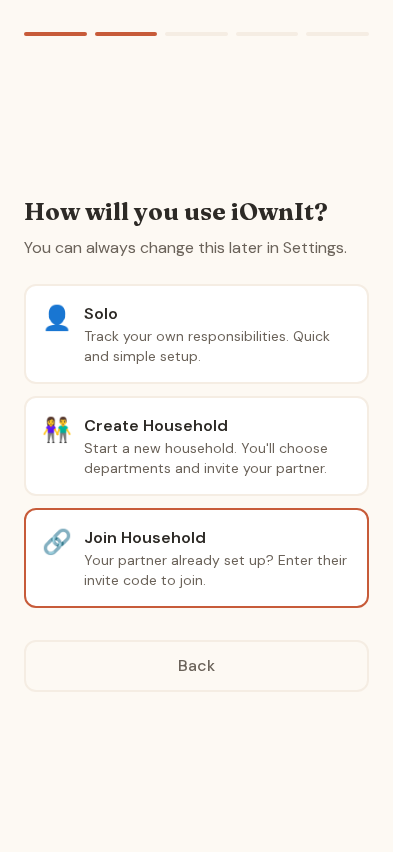
For this guide, we'll choose Solo.
4. Setup path
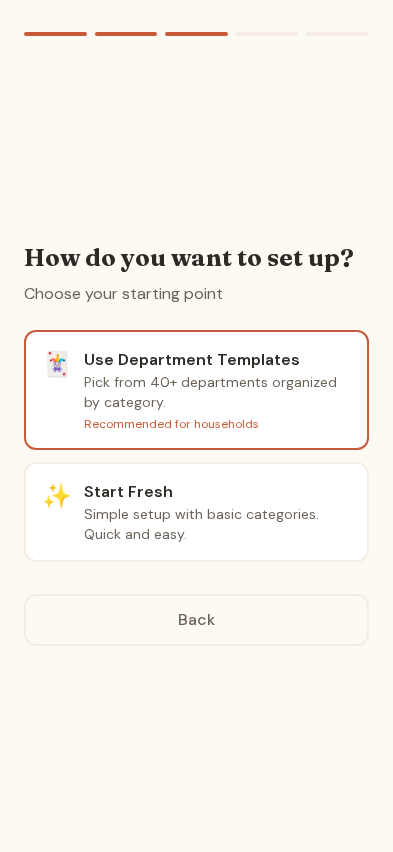
Choose how to set up your departments:
- Use Department Templates - Pick from 40+ pre-configured departments with tasks
- Start Fresh - Simple setup with basic categories
5. Pick your departments
Browse departments by category: Home, Out, Caregiving, Magic, and Wild.
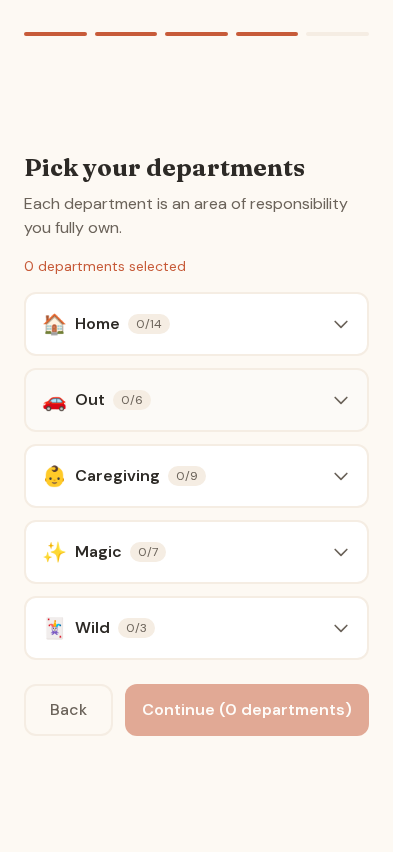
Tap a category to expand it and see available departments.
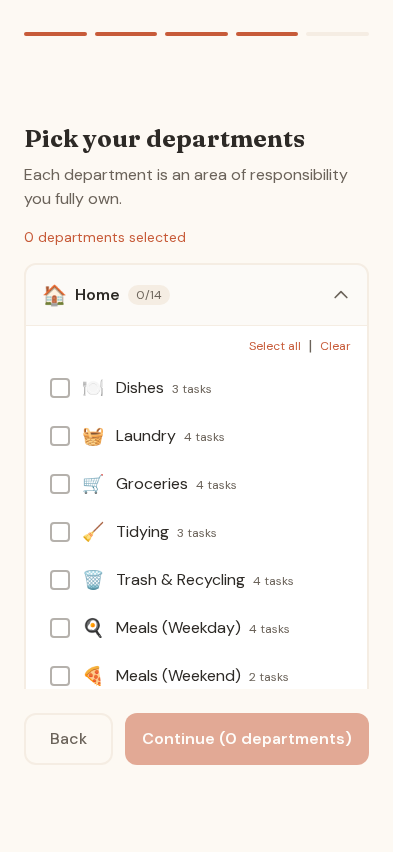
Use Select all to pick all departments in a category, or tap individual ones.
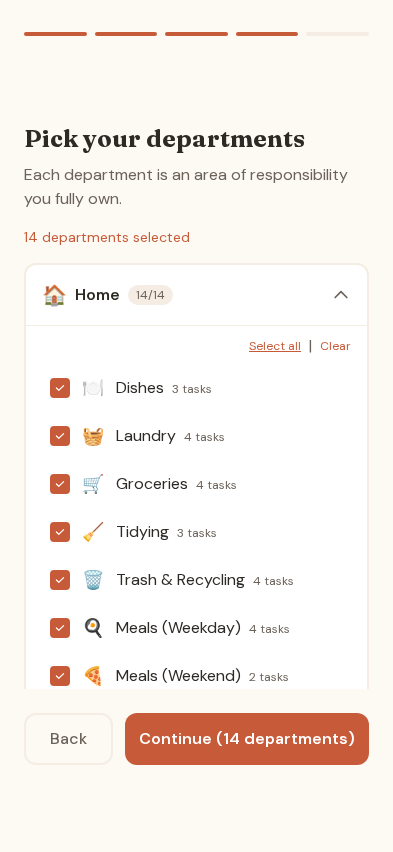
Tap Continue when ready.
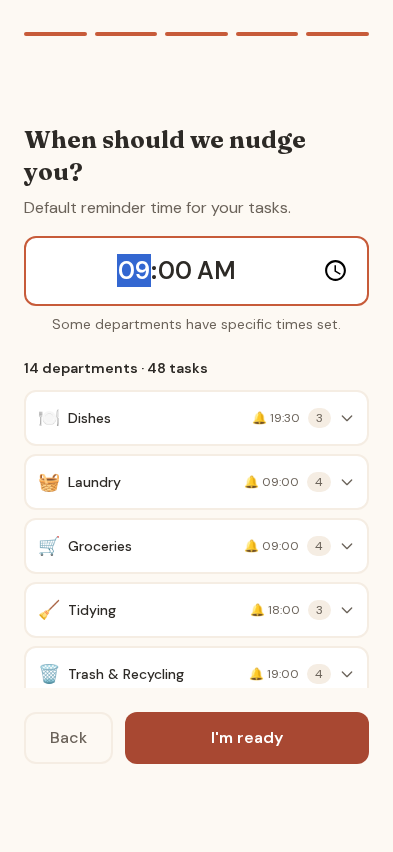
6. Set your reminder time
Choose when you'd like to receive daily notifications. Each department can have its own reminder time.
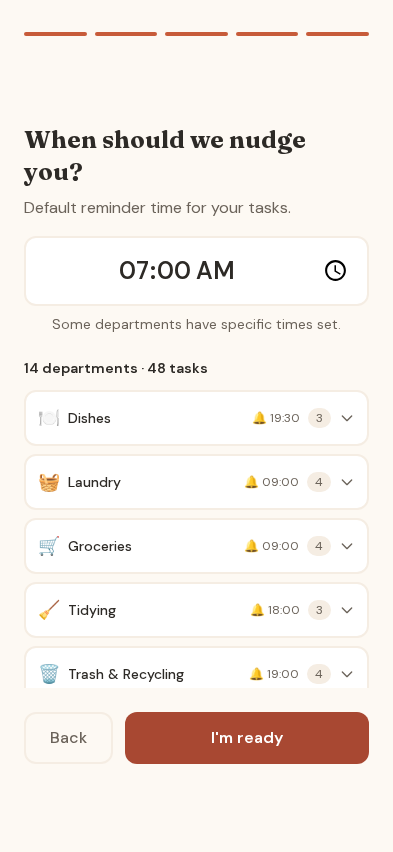
Set your preferred time and tap I'm ready.
7. Your today view
This is your daily command center showing all tasks organized by when they're due.
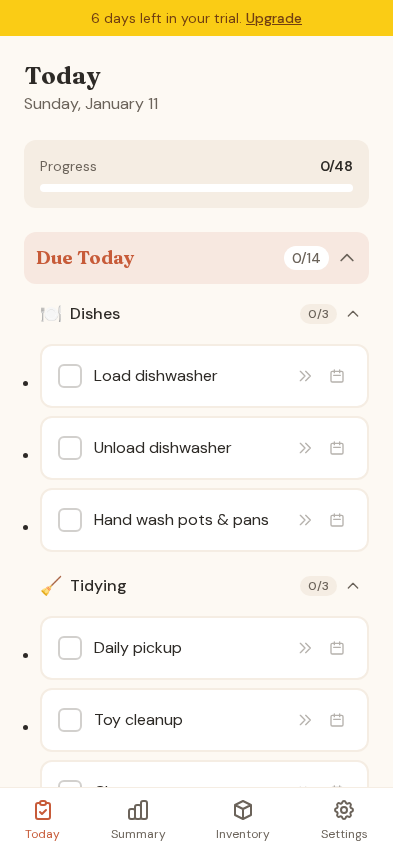
Sections:
- Due Today - Tasks scheduled for today
- This Week - Weekly tasks
- This Month - Monthly tasks
Tip: When you first start, you may see a "tasks need scheduling" prompt. Tap Dismiss for today to focus on your immediate tasks first. You can schedule recurring tasks later from Settings.
Tap the checkbox next to any task to mark it complete.
8. Track your progress
The Summary view shows your completion rate over time with visual progress tracking.
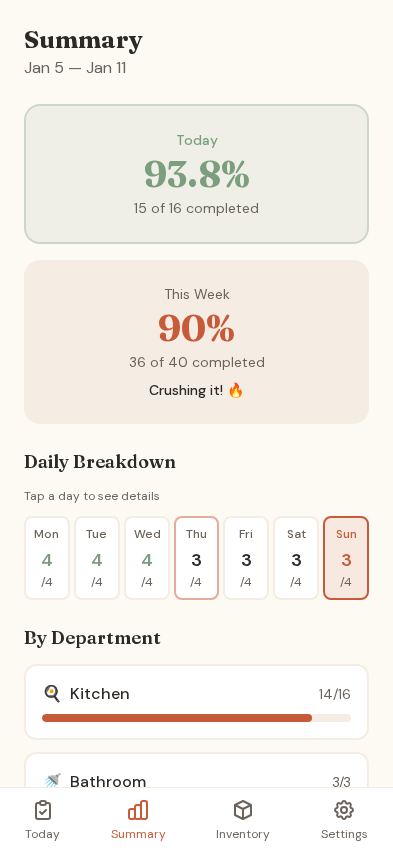
- Today card shows today's completion percentage
- This Week shows your weekly progress
- Daily Breakdown - tap any day to see details
- By Department shows progress per area
9. Task history
View your completed tasks over any time period with filtering and export options.
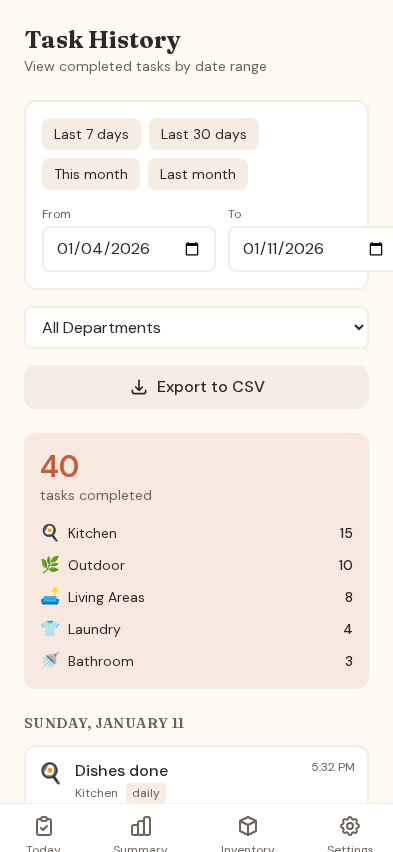
Features:
- Filter by date range (7 days, 30 days, month, custom)
- Filter by department
- Export to CSV for record-keeping
- See breakdown by department
- View individual completed tasks with timestamps
10. Inventory tracking
Track household supplies and get notified when items run low.
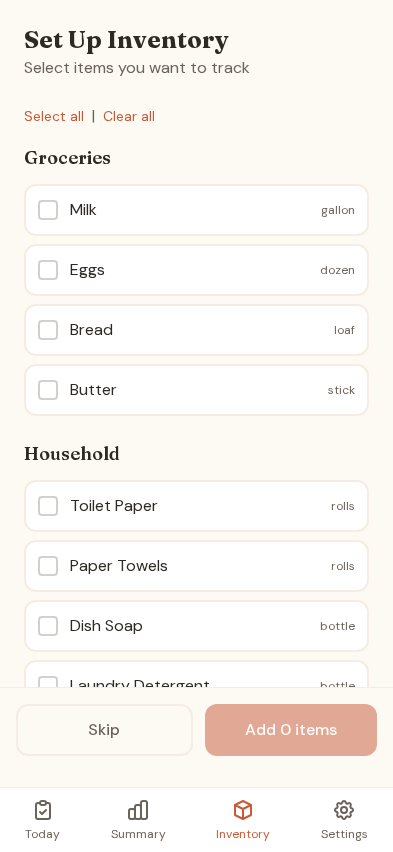
Categories include:
- Groceries - Milk, Eggs, Bread, Butter
- Household - Toilet Paper, Paper Towels, Dish Soap
Select items to track and set low-stock thresholds.
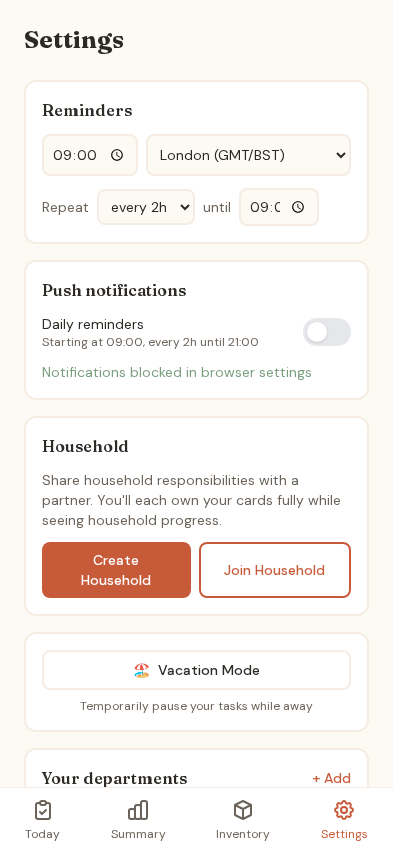
11. Customize in settings
Access Settings to customize your experience: reminders, notifications, and departments.
12. Manage your departments
Scroll to Your departments to see all your areas of responsibility.
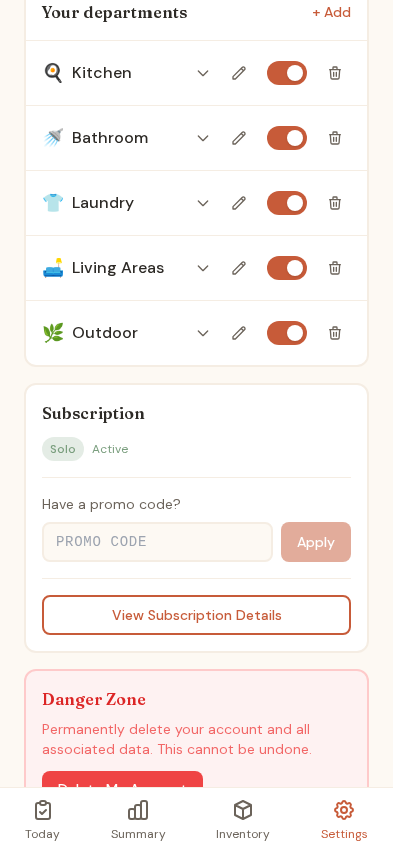
Each department shows:
- Name and emoji
- Reminder time
- Toggle to enable/disable
- Edit and delete options
13. Add new departments
Tap + Add to create a new department.
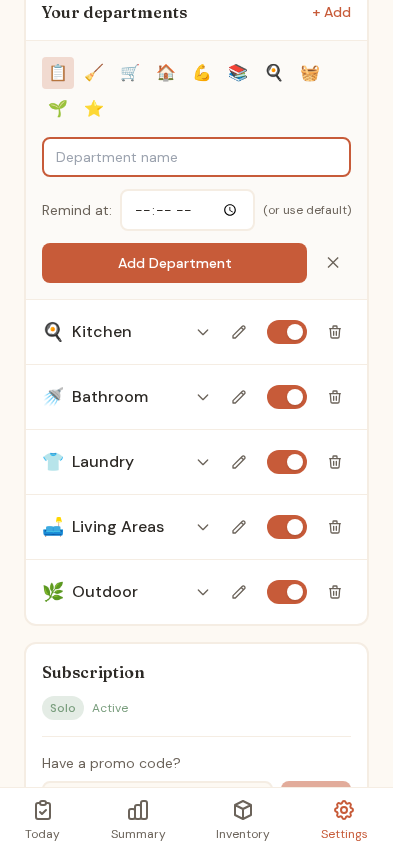
Enter a name and choose an emoji.
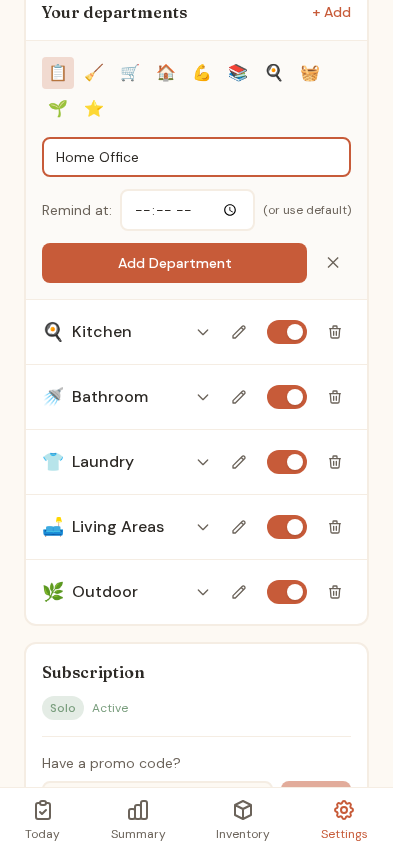
Tap Add Department to create it.
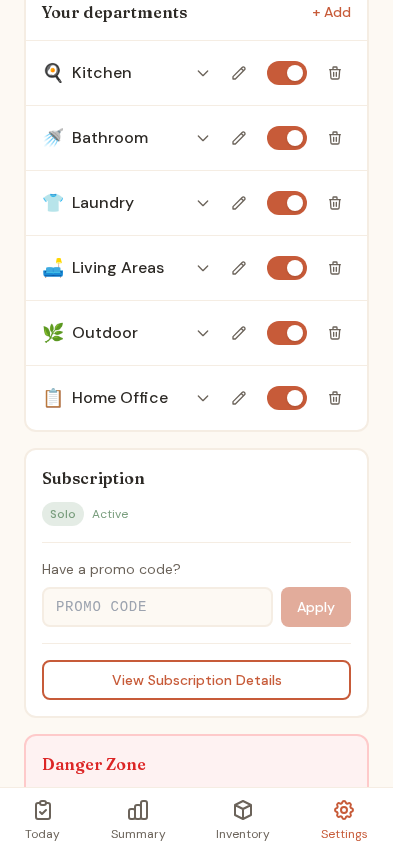
You're all set!
You now know how to:
- Create an account and complete onboarding
- Navigate the Today view and complete tasks
- Check your progress in Summary
- Review completed tasks in Task History
- Track household supplies in Inventory
- Add new departments and chores in Settings
Tips for success:
- Install the app to your home screen for push notifications
- Set reminder times that fit your daily routine
- Start with a few departments and add more as needed
- Review your Summary weekly to spot patterns
- Export Task History monthly for records
Generated with iOwnIt