iOwnIt Visual Guide
This guide provides a visual walkthrough of all features in the iOwnIt app.
Table of Contents
- Getting Started
- Login
- Registration
- Onboarding
- Today View
- Summary View
- Inventory
- Settings
- Household Mode
- Mobile Experience
Getting Started
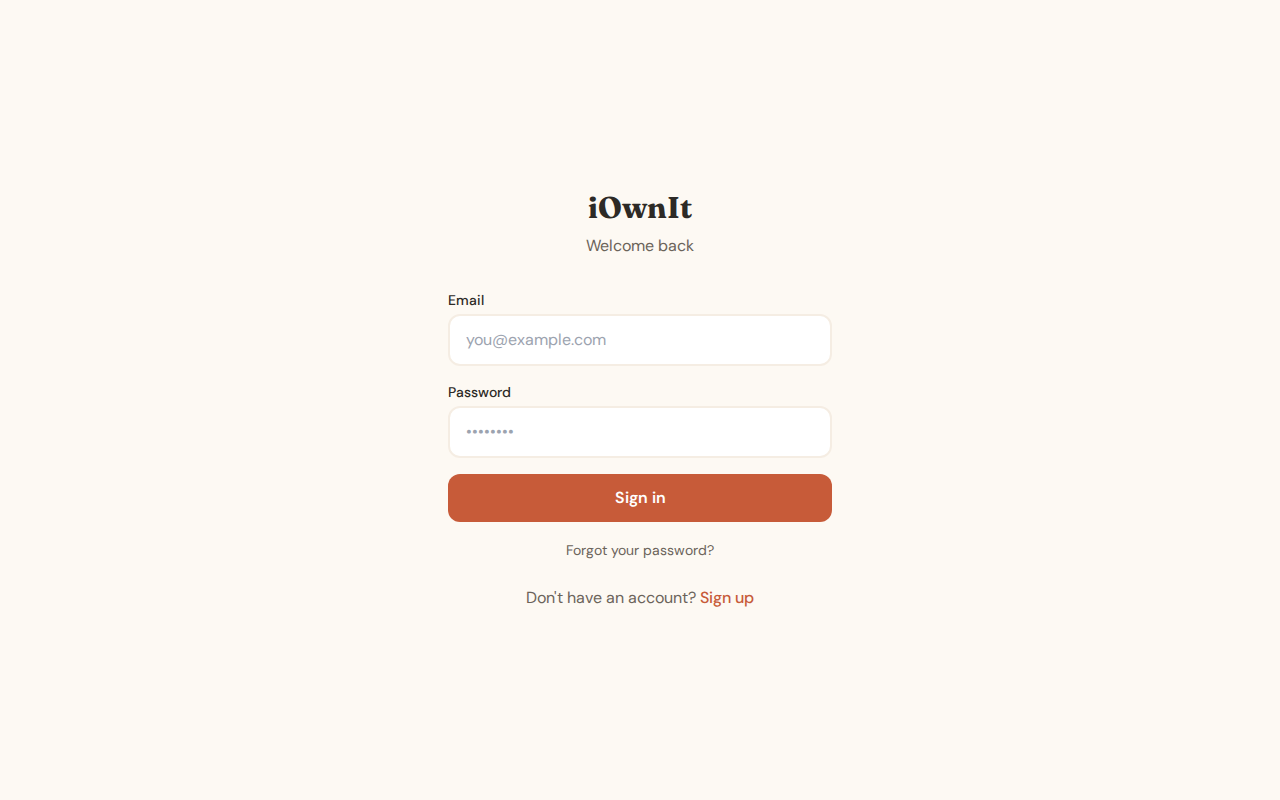
Login
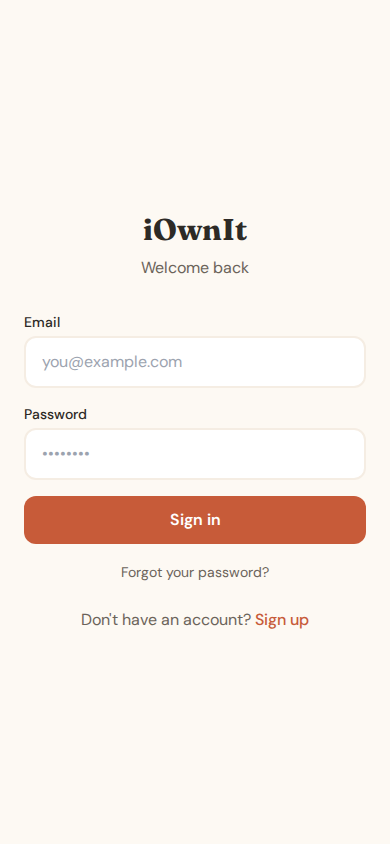
Access your account by entering your email and password.
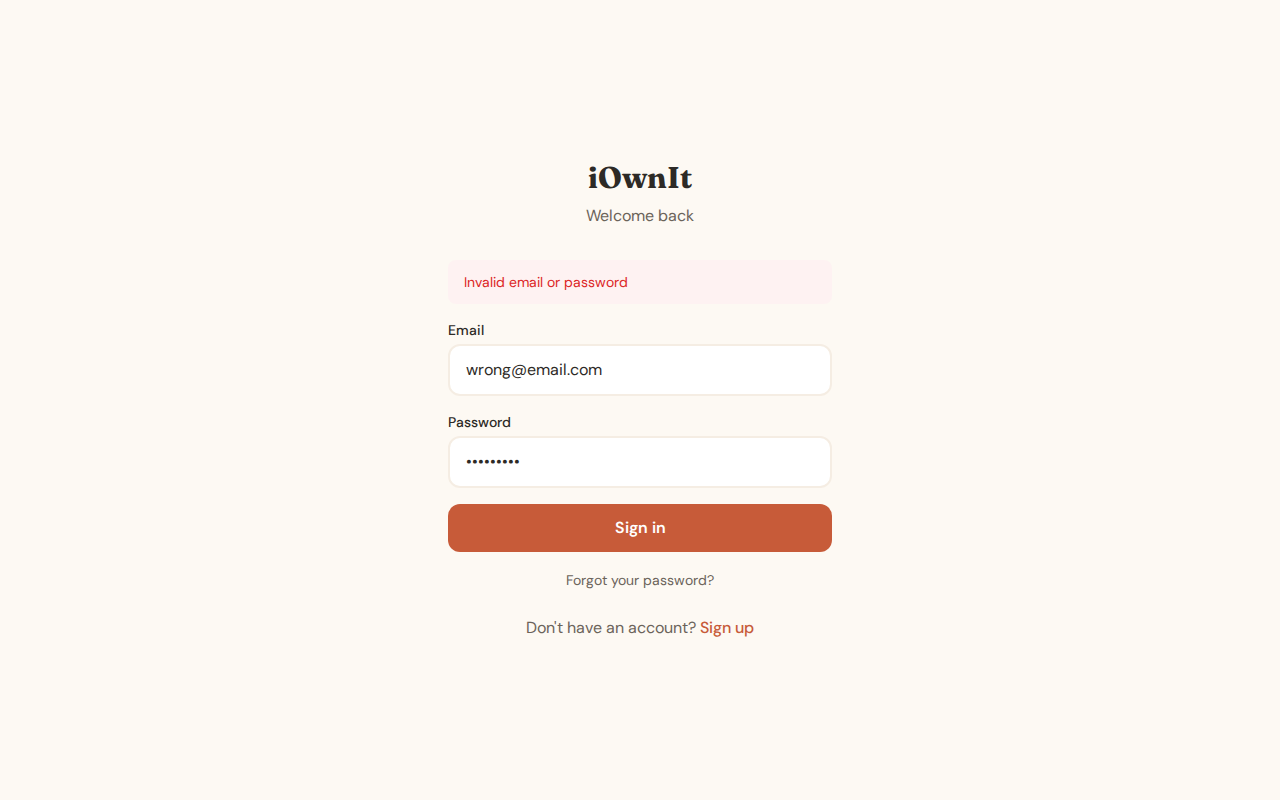
If you enter incorrect credentials, you'll see an error message:
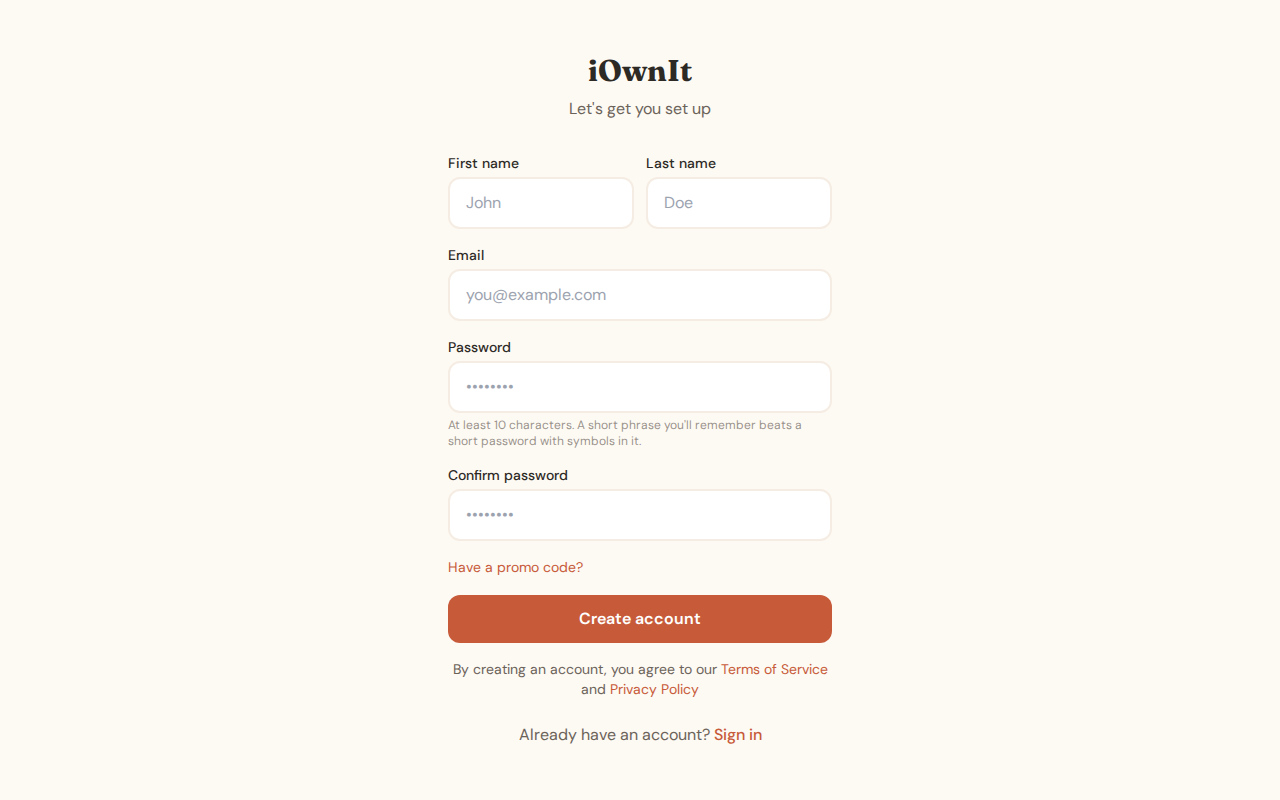
Registration
Create a new account with your name, email, and password. You can optionally enter a promo code if you have one.
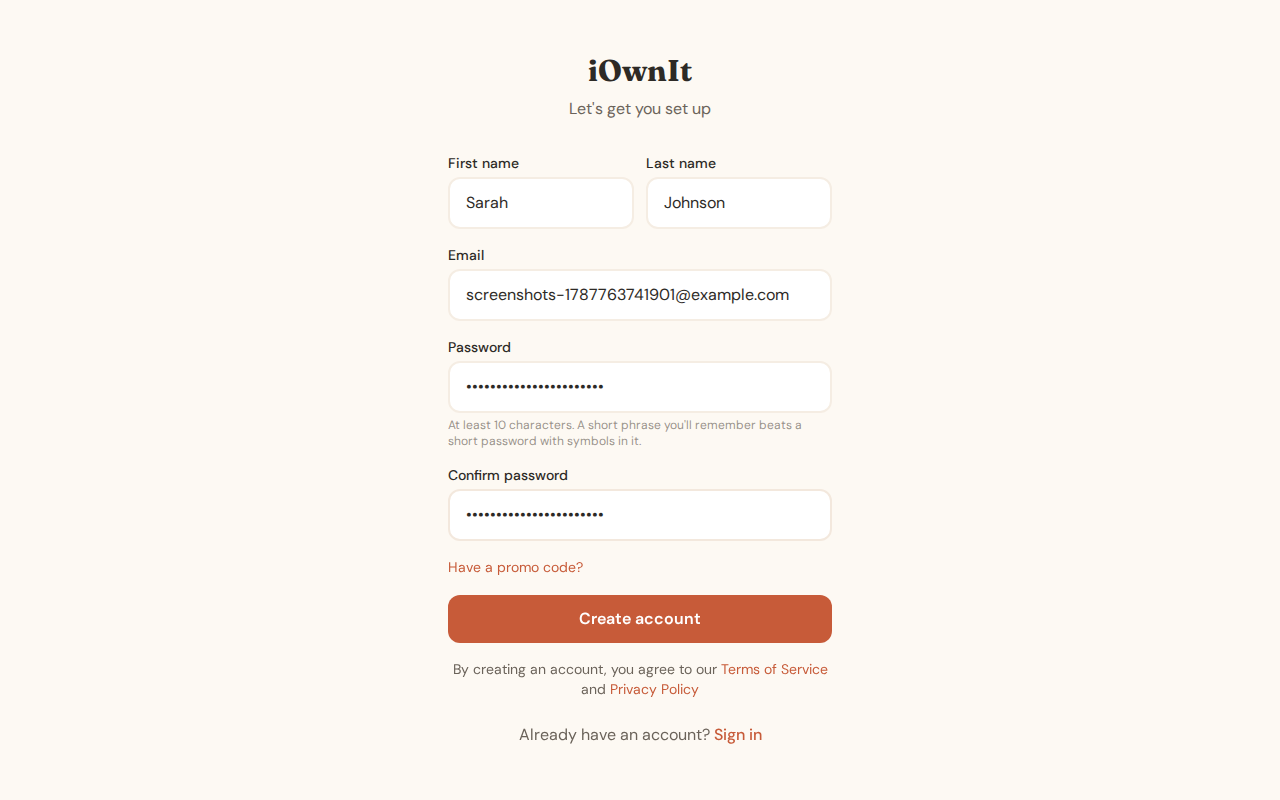
Fill in your details:
Onboarding
After registration, you'll be guided through setting up your account.
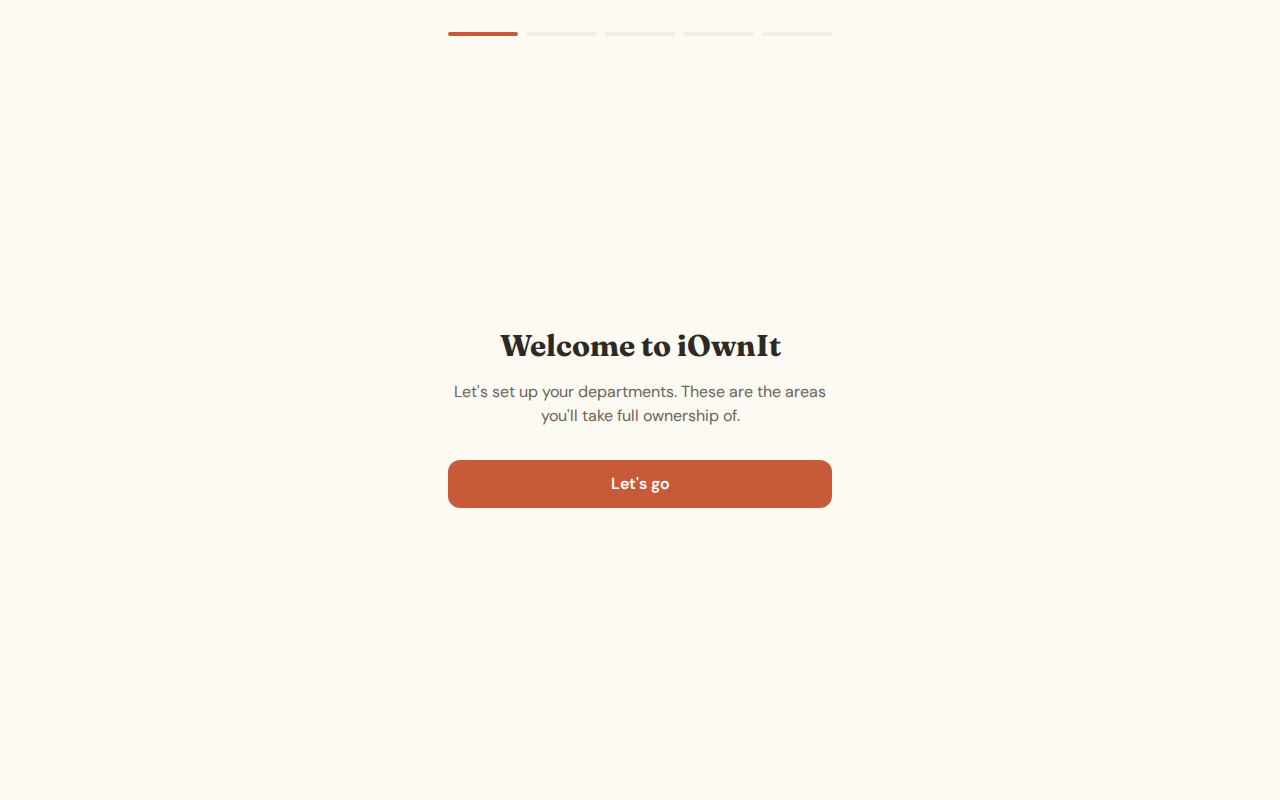
Step 1: Welcome
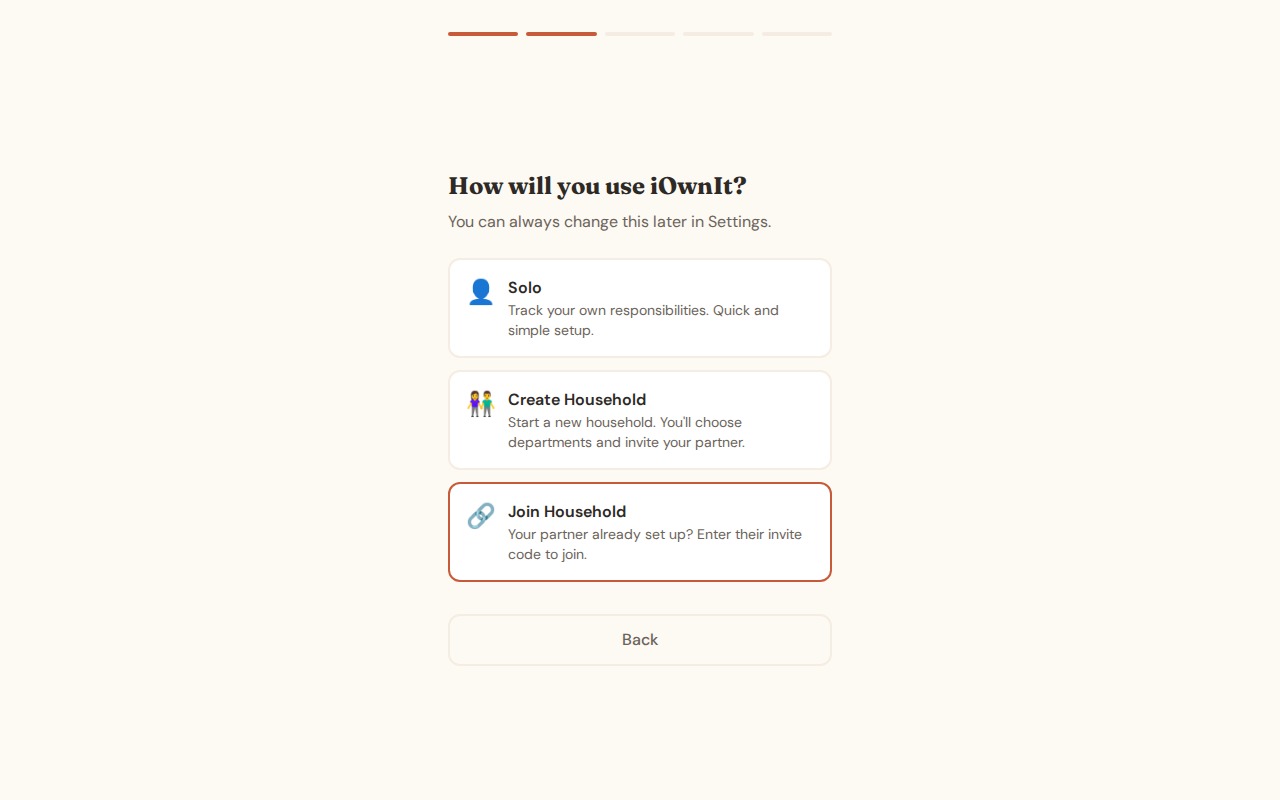
Step 2: Choose Your Mode
Select Solo for personal use or Household to share with a partner.
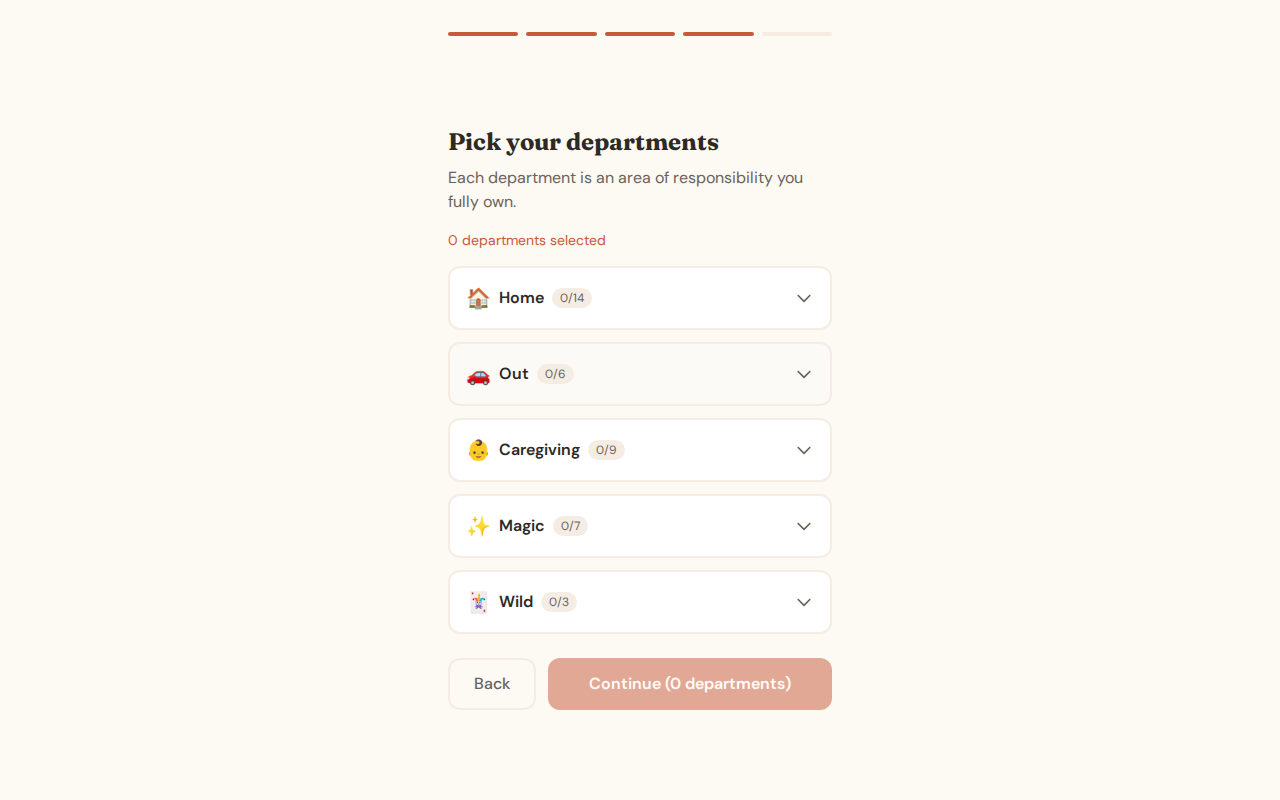
Step 3: Select Departments
Choose which areas of your life you want to manage.
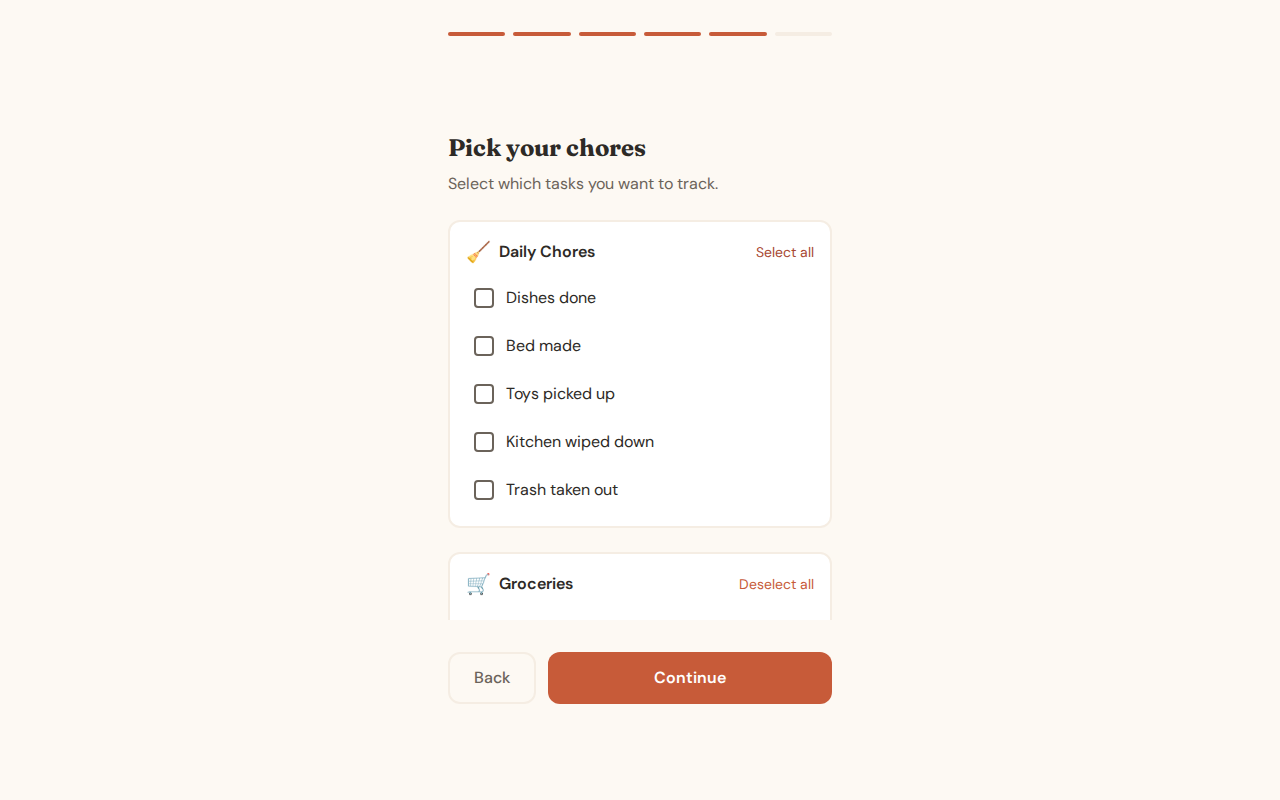
Step 4: Select Tasks
Pick the specific tasks you want to track.
Step 5: Set Notification Time
Choose when you'd like to receive daily reminders.
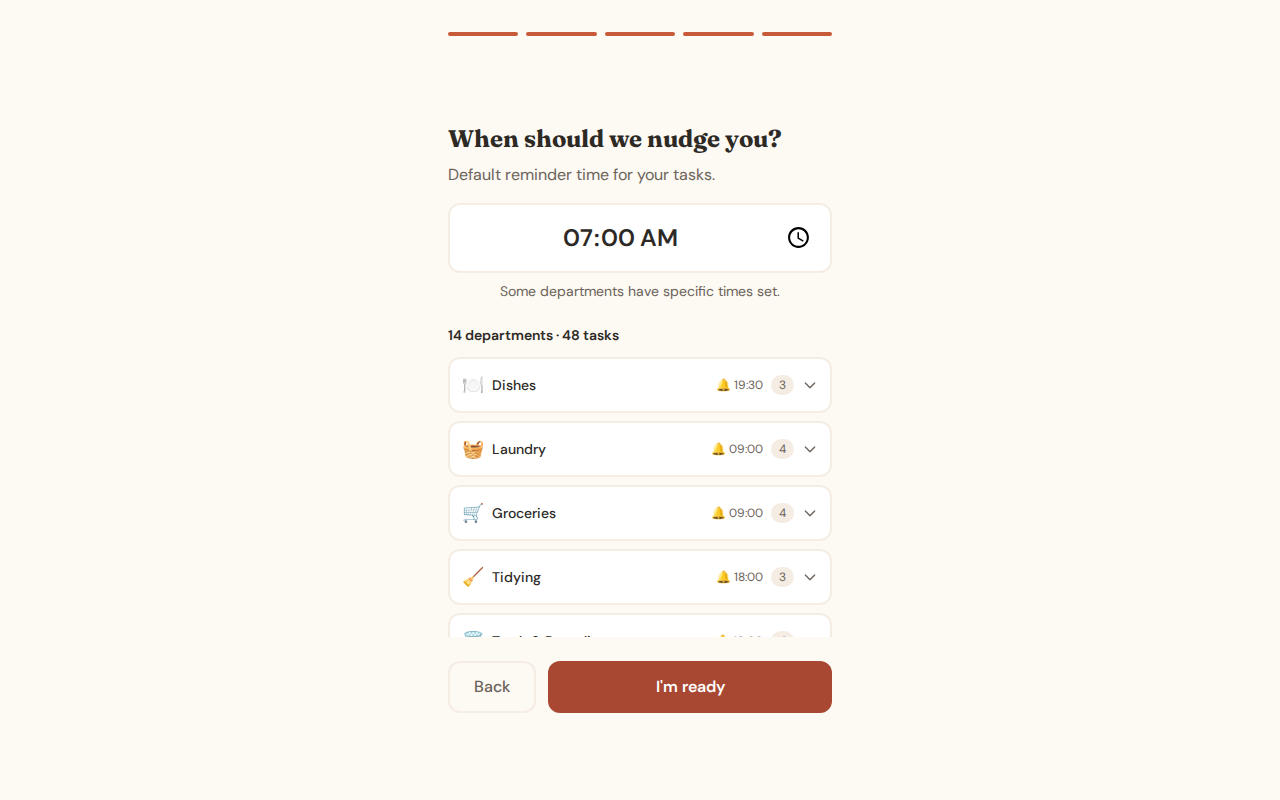
Setup Complete
You're ready to start managing your tasks!
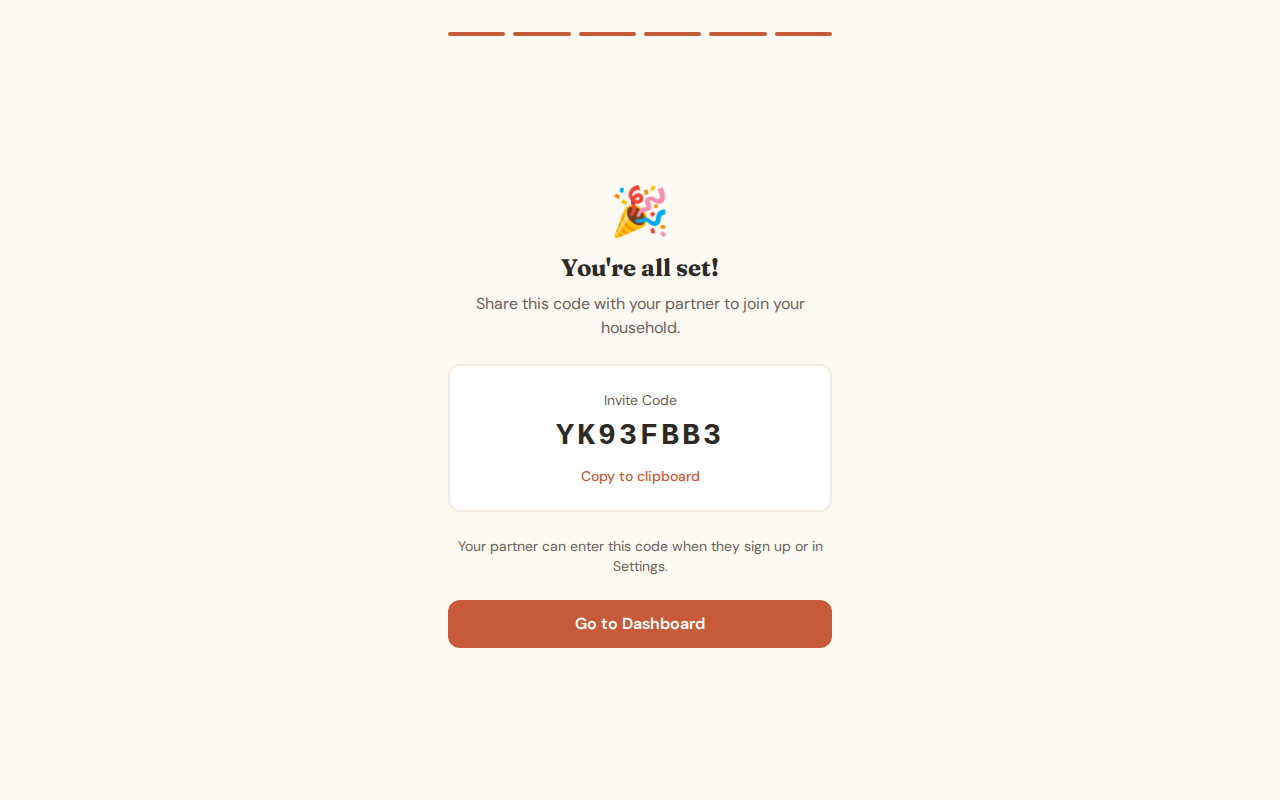
Today View
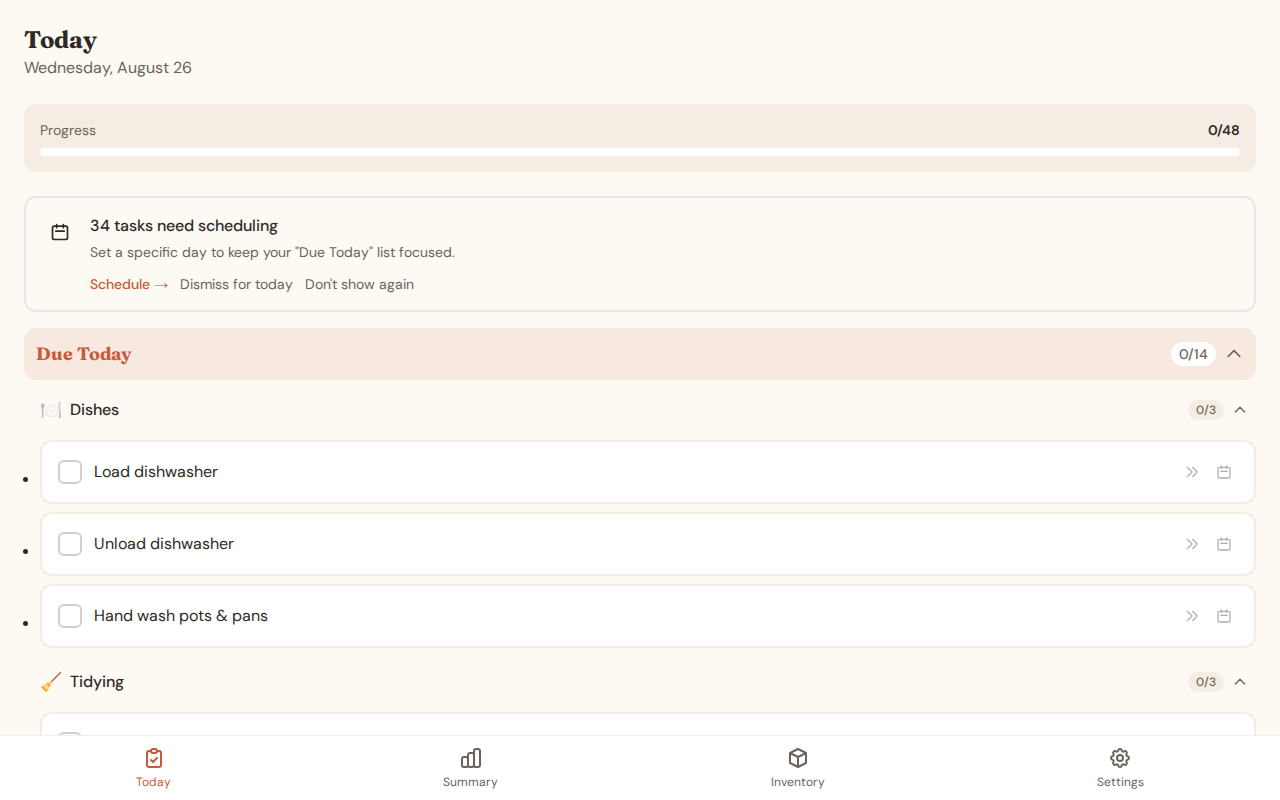
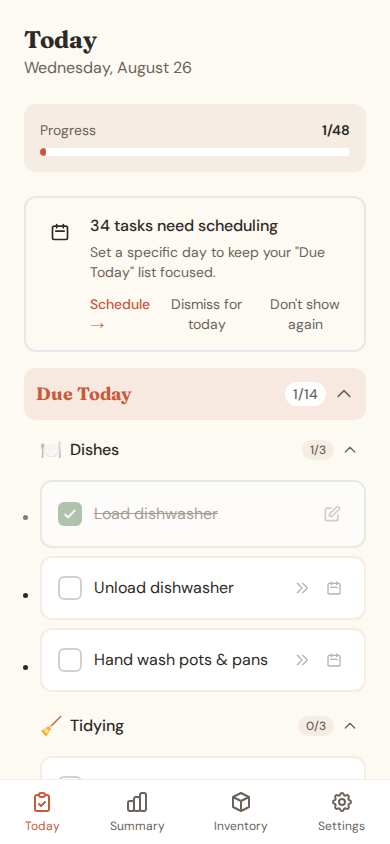
The Today view is your daily command center, showing all tasks organized by section.
Main View
Sections
Tasks are organized into collapsible sections:
- Due Today: Daily tasks and scheduled items for today
- This Week: Weekly tasks (collapsed by default)
- This Month: Monthly tasks
- This Quarter: Quarterly tasks
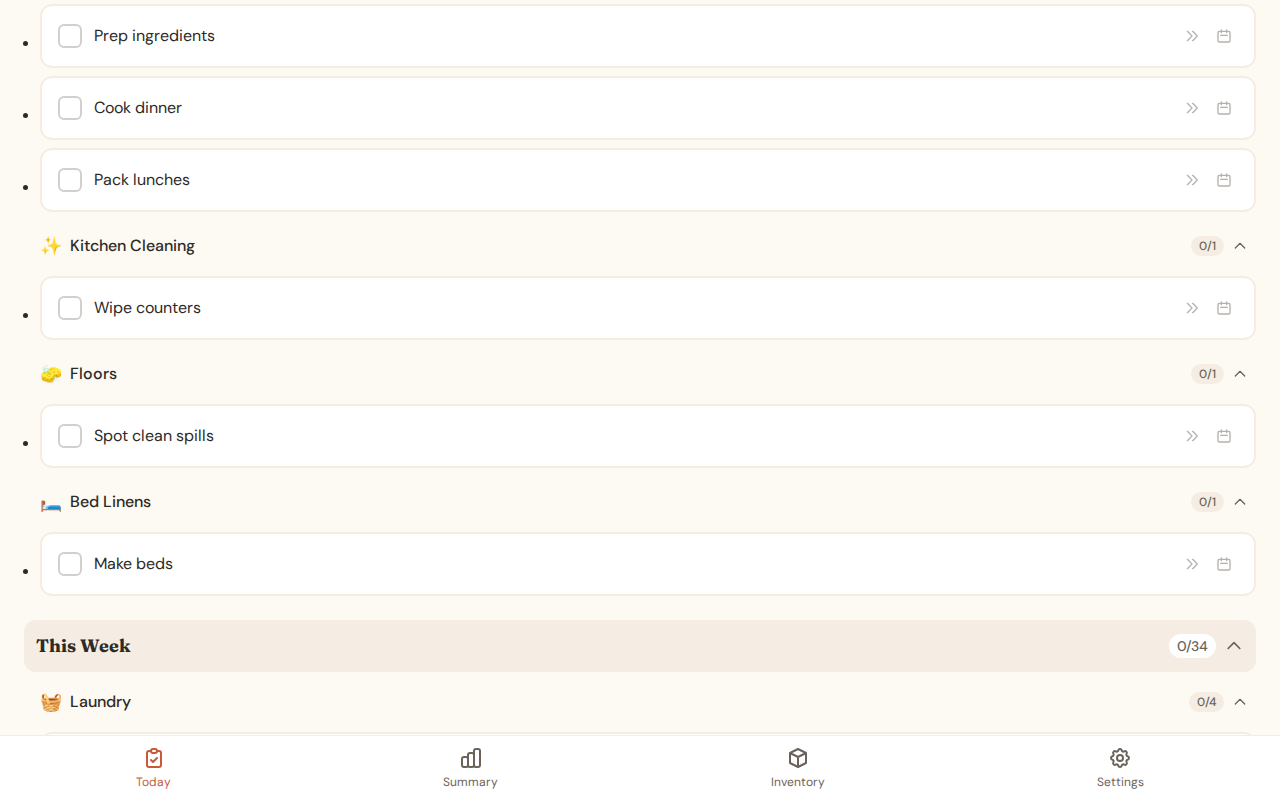
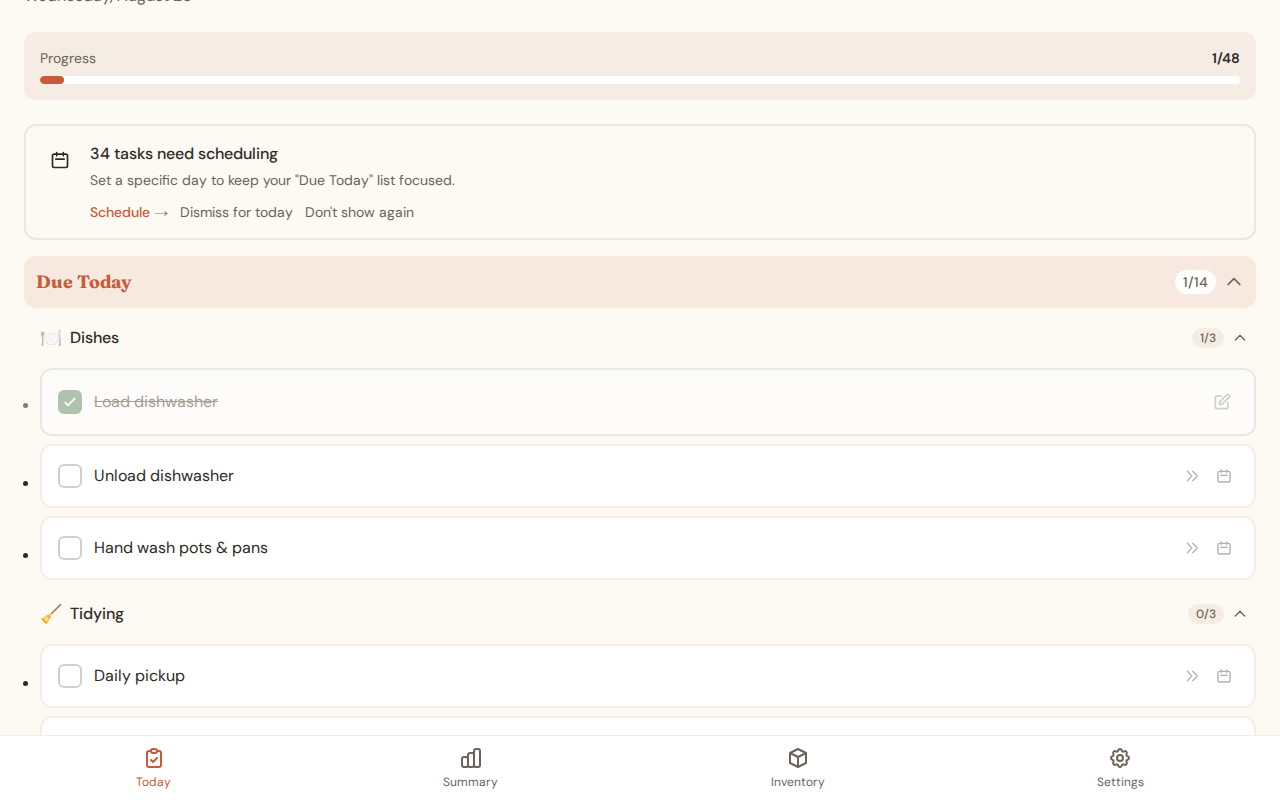
Completing Tasks
Tap the checkbox to mark a task as complete. A satisfying animation confirms your action!
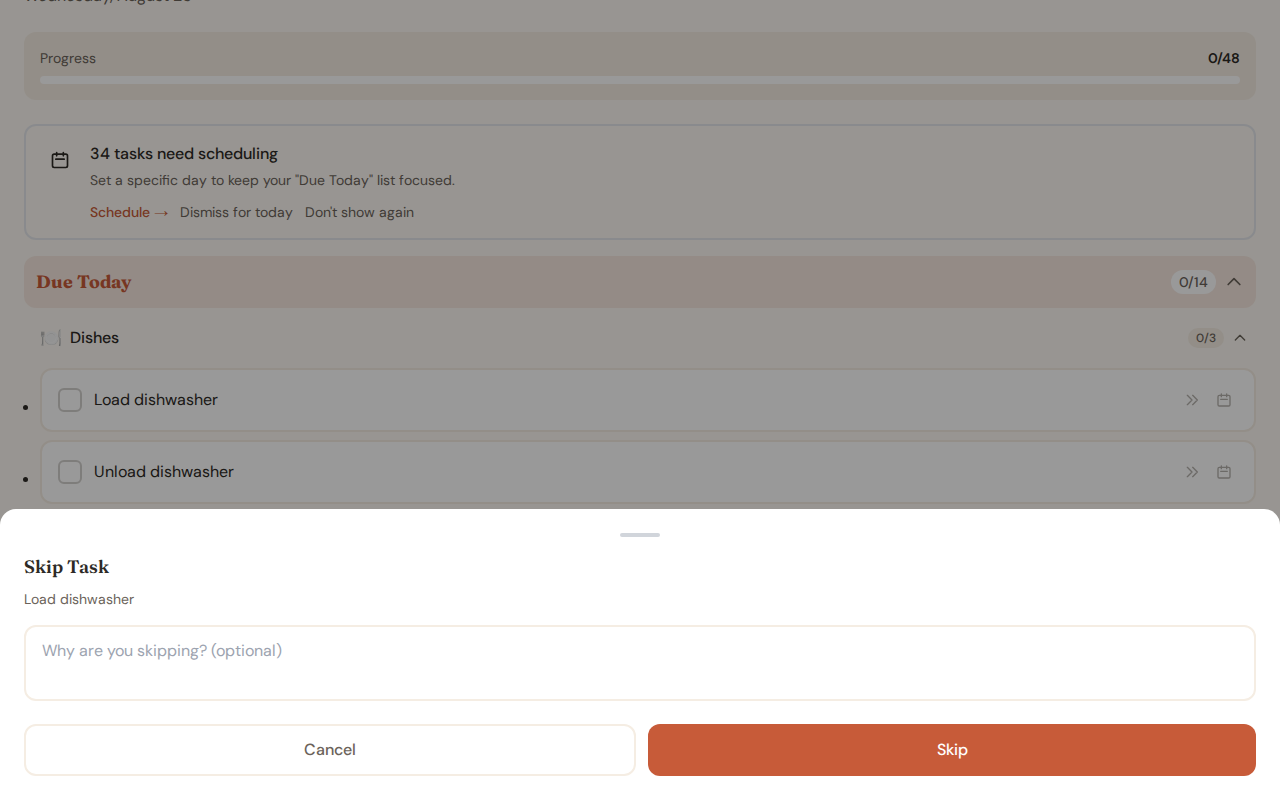
Skip or Defer
Can't do a task today? Skip it with an optional reason, or defer it to a specific date.
Summary View
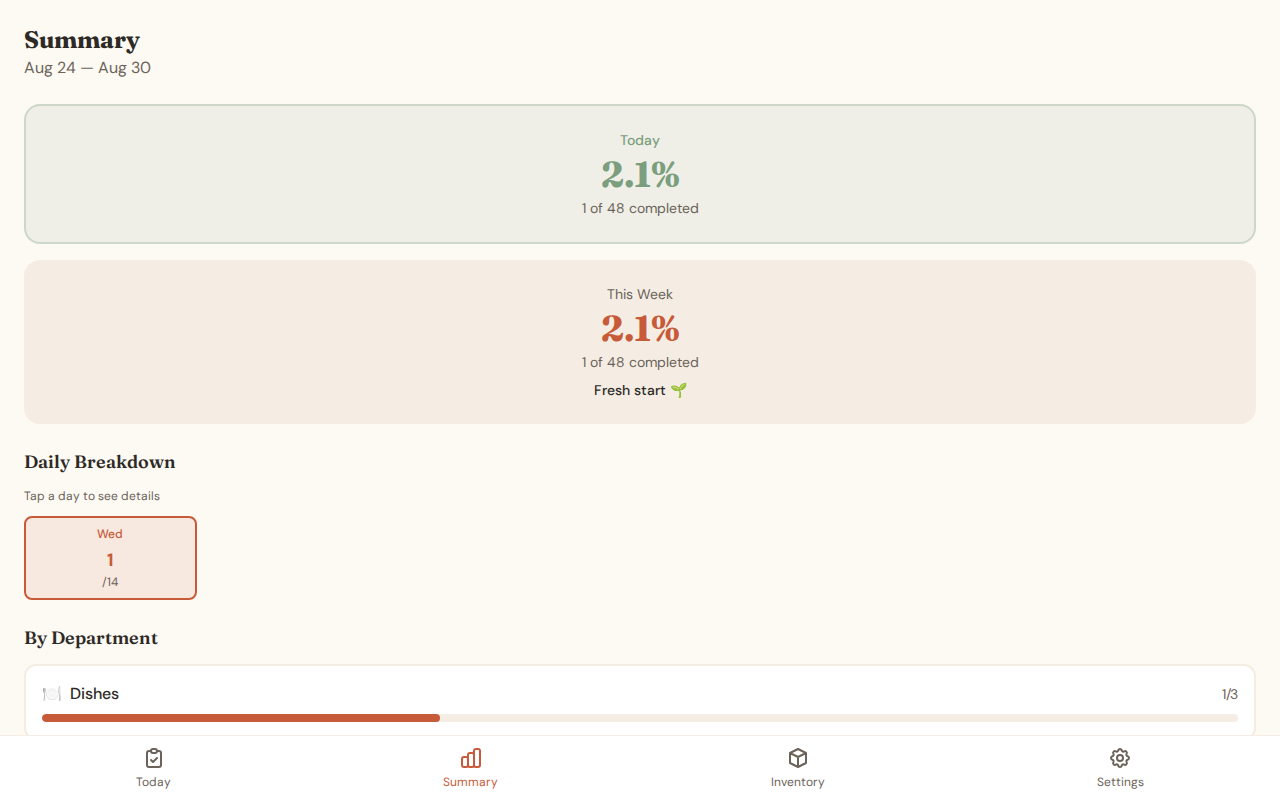
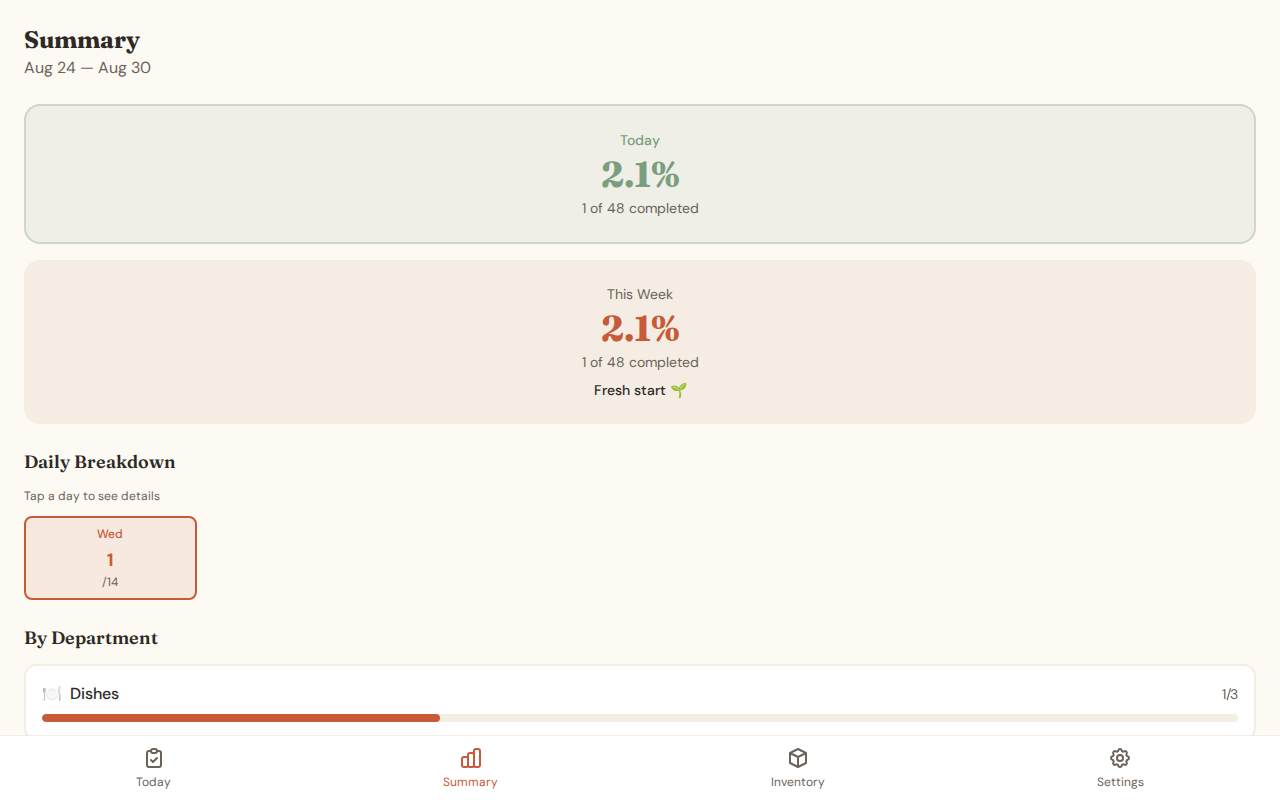
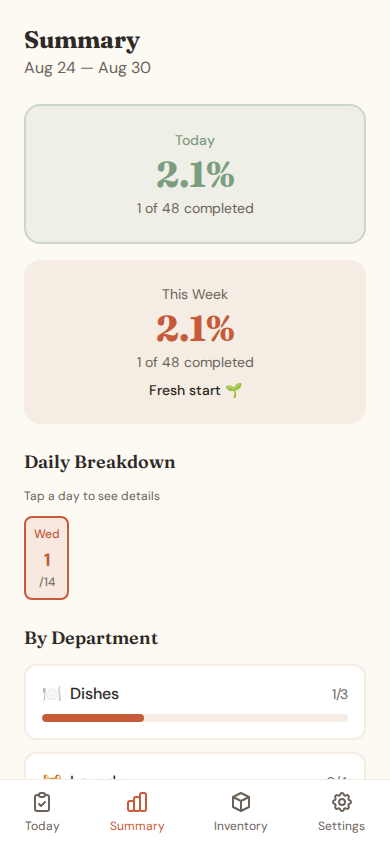
Track your progress over time with the Summary view.
Weekly Overview
See your completion rate for the week with a day-by-day breakdown.
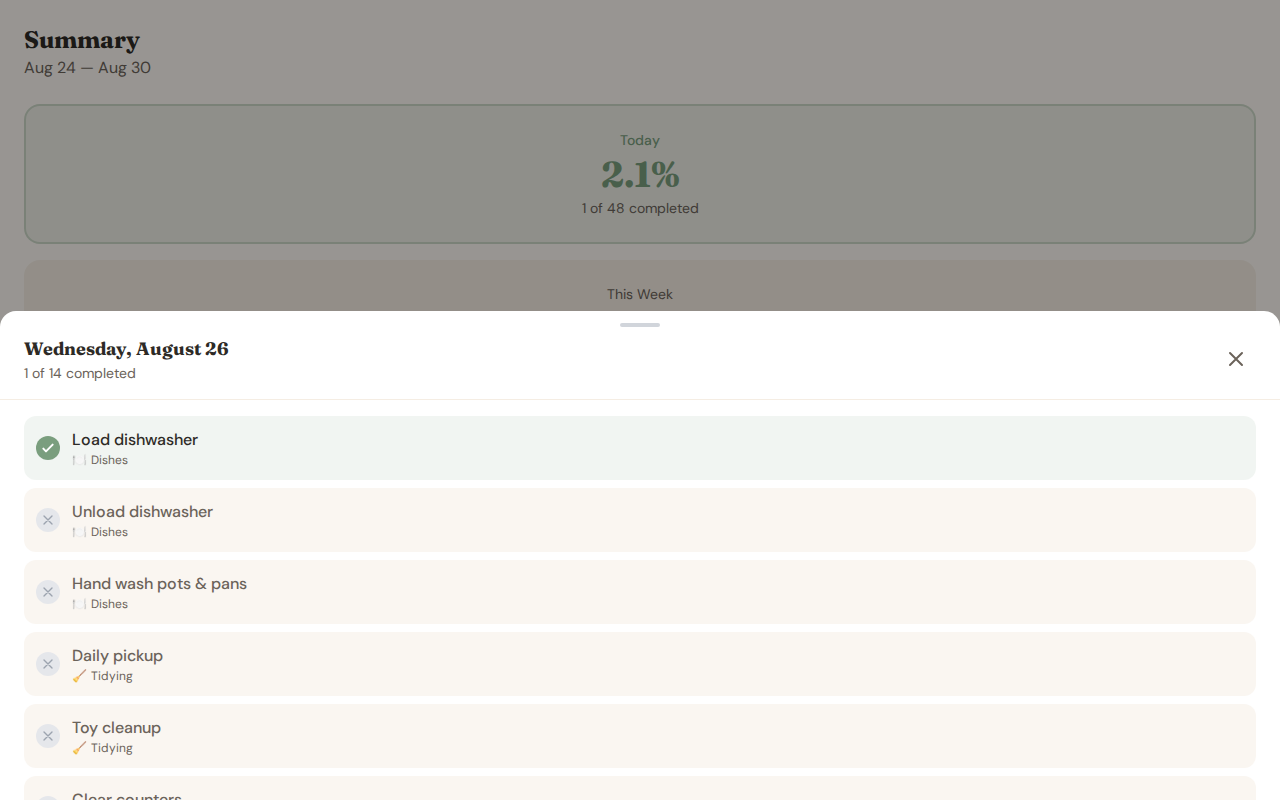
Day Details
Tap any day to see exactly what was completed.
Weekly Tasks
View the status of your weekly tasks.
Inventory
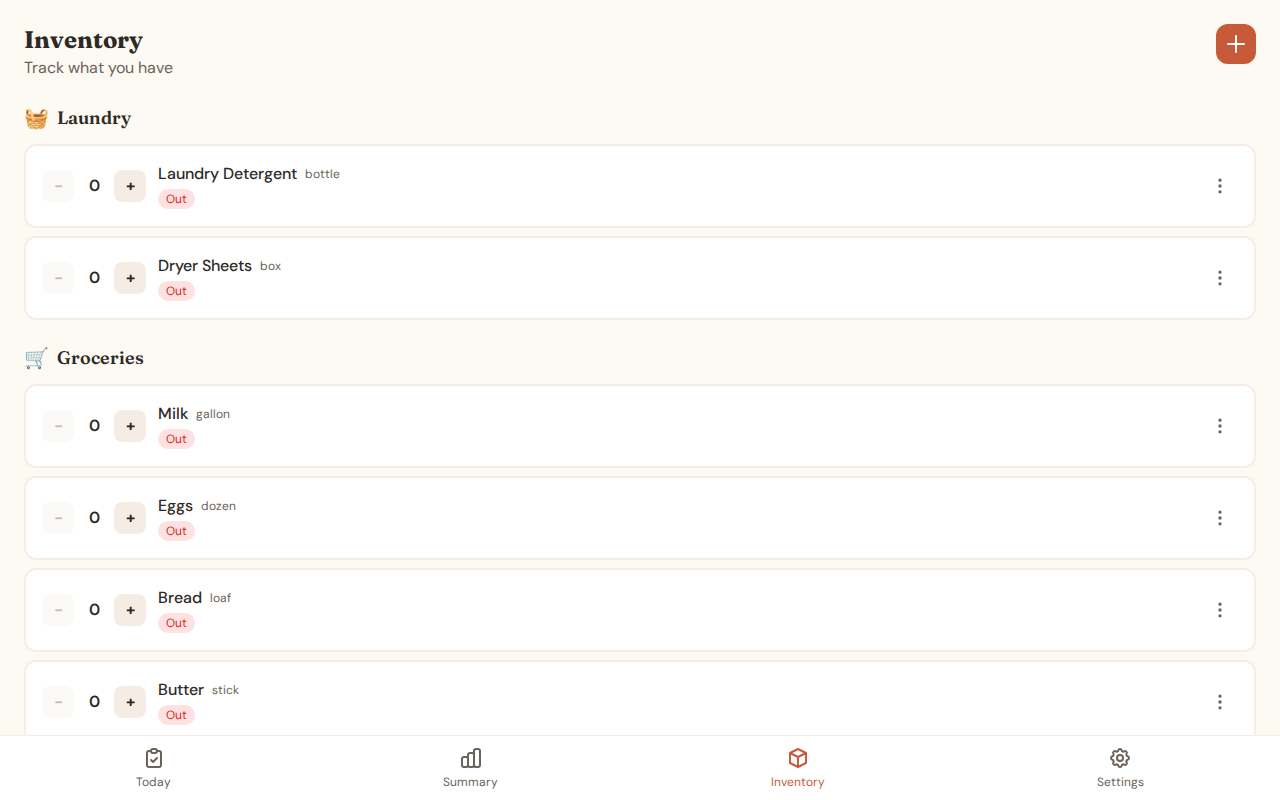
Track household items and get alerts when supplies run low.
Inventory List
Items are grouped by department with status indicators:
- 🟢 In Stock: Quantity above threshold
- 🟡 Low: Below threshold, time to restock
- 🔴 Out: Zero quantity
Adding Items
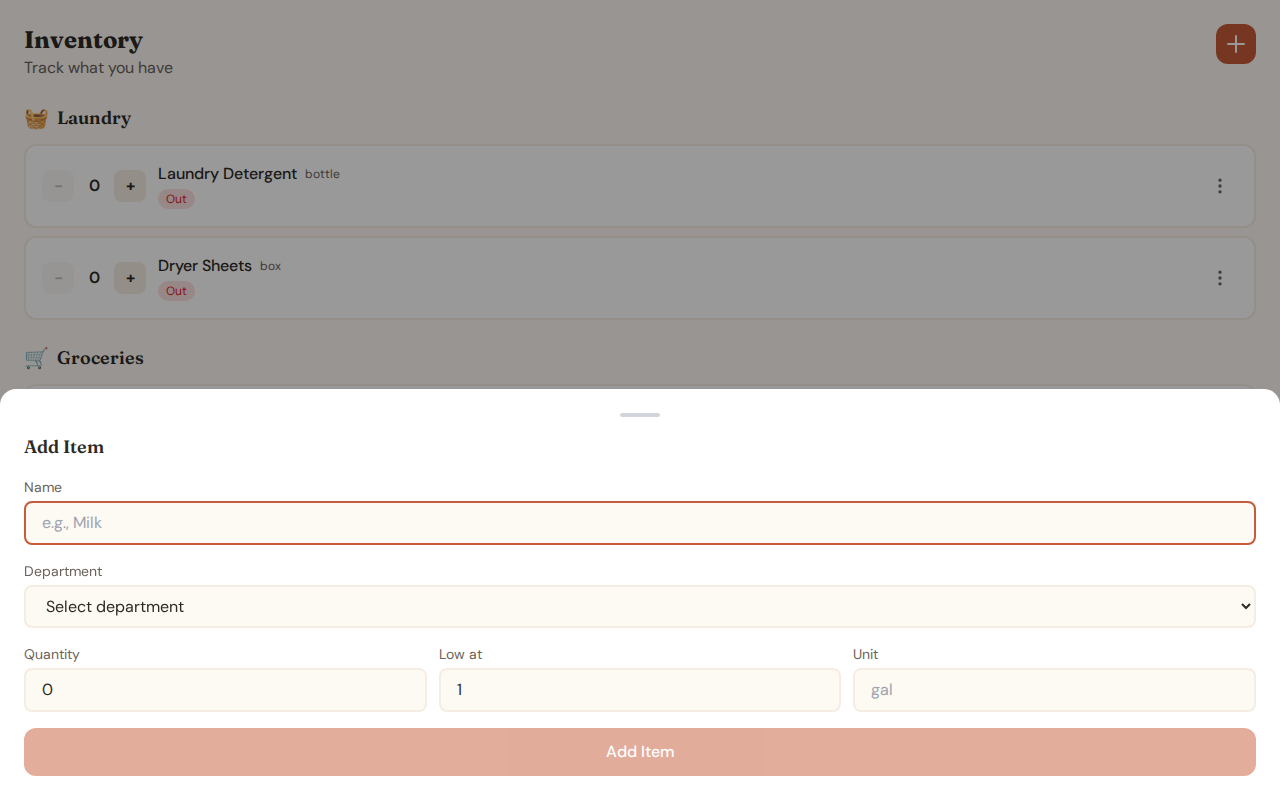
Add new items to track with name, quantity, unit, and low-stock threshold.
Adjusting Quantity
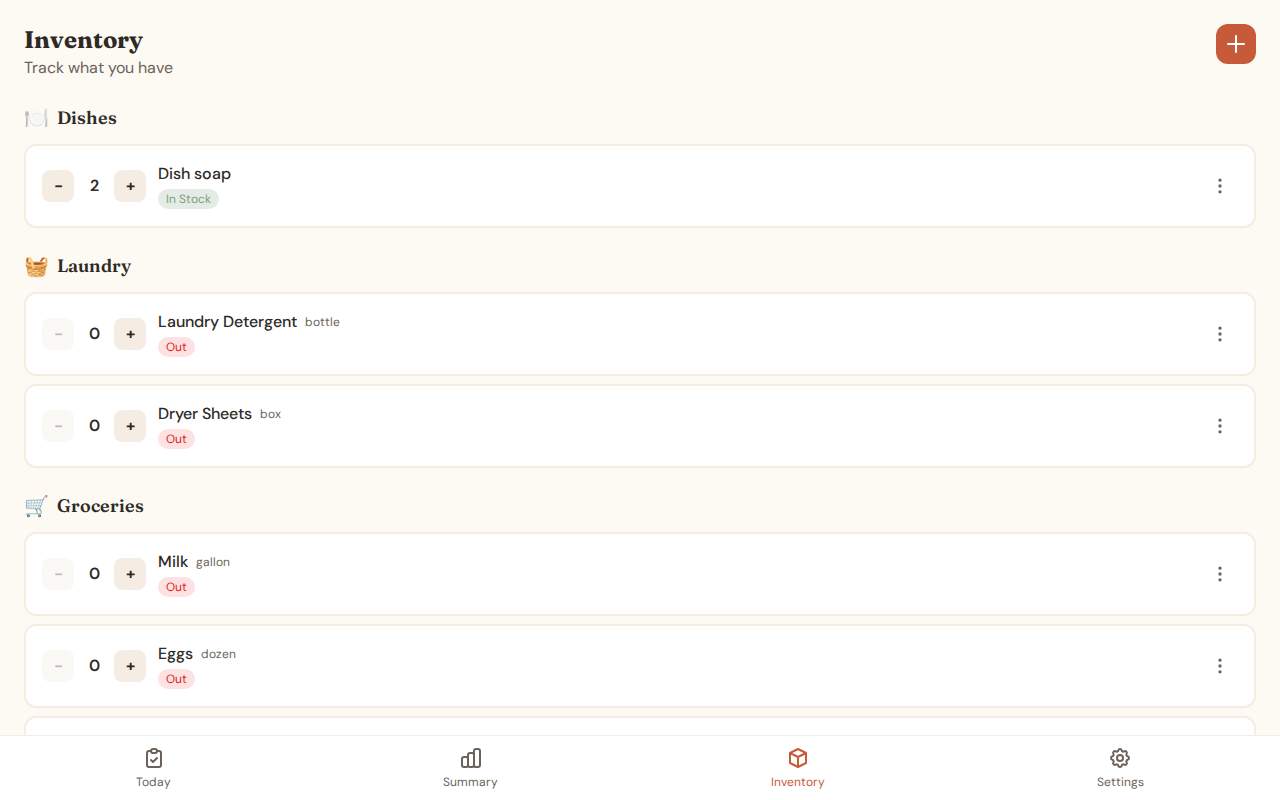
Use the +/- buttons to quickly update quantities.
Settings
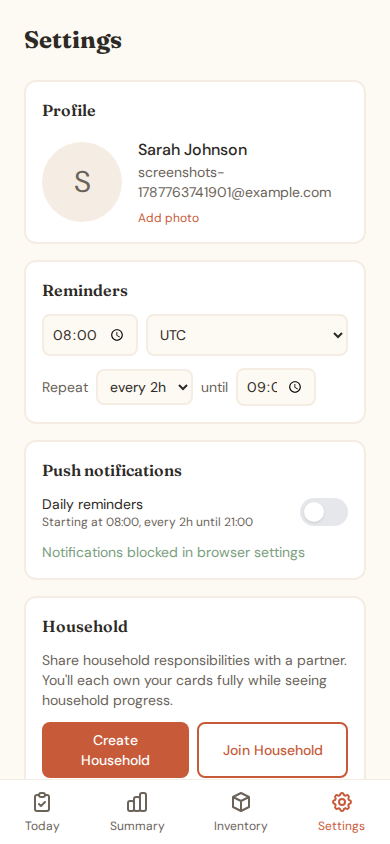
Customize your experience in the Settings page.
Overview
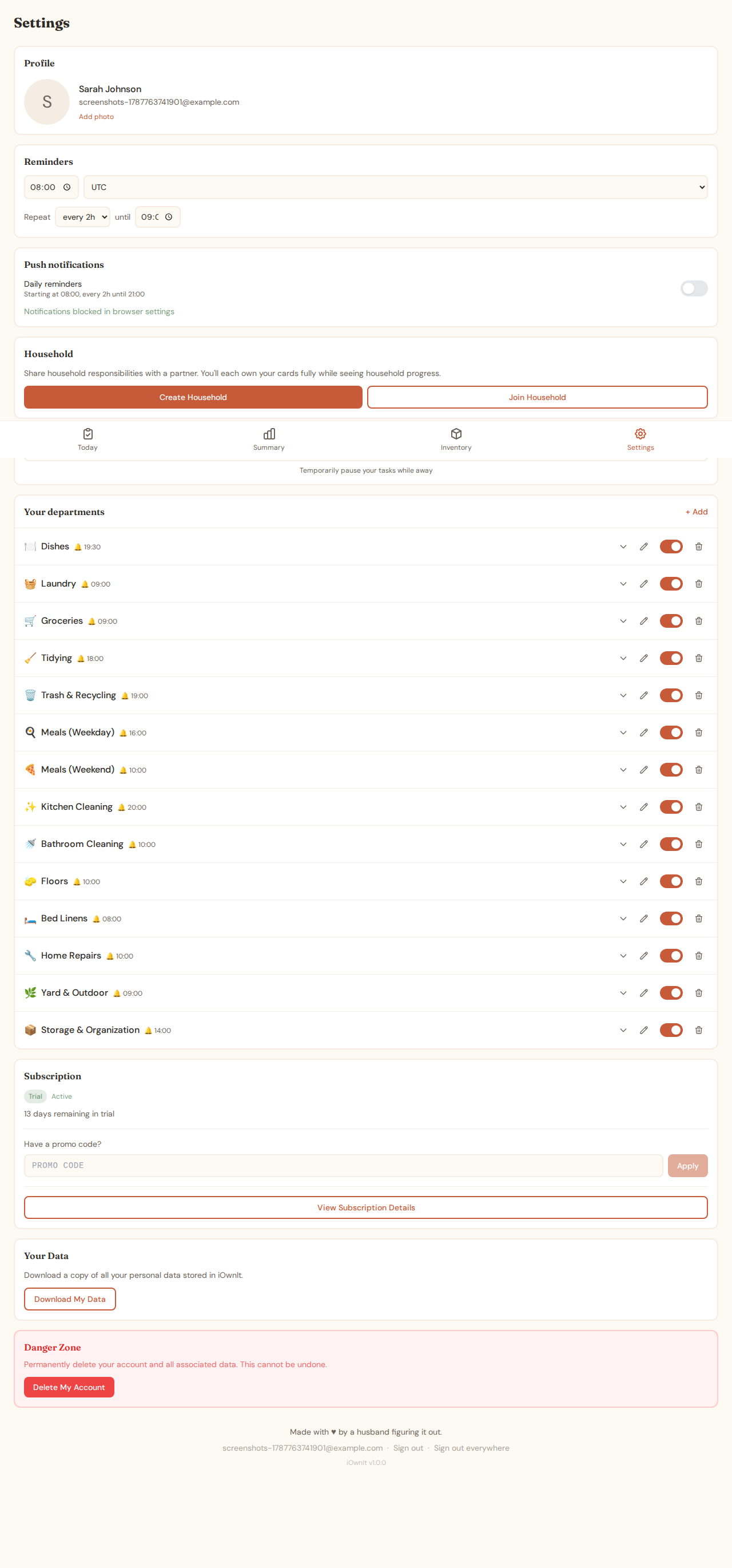
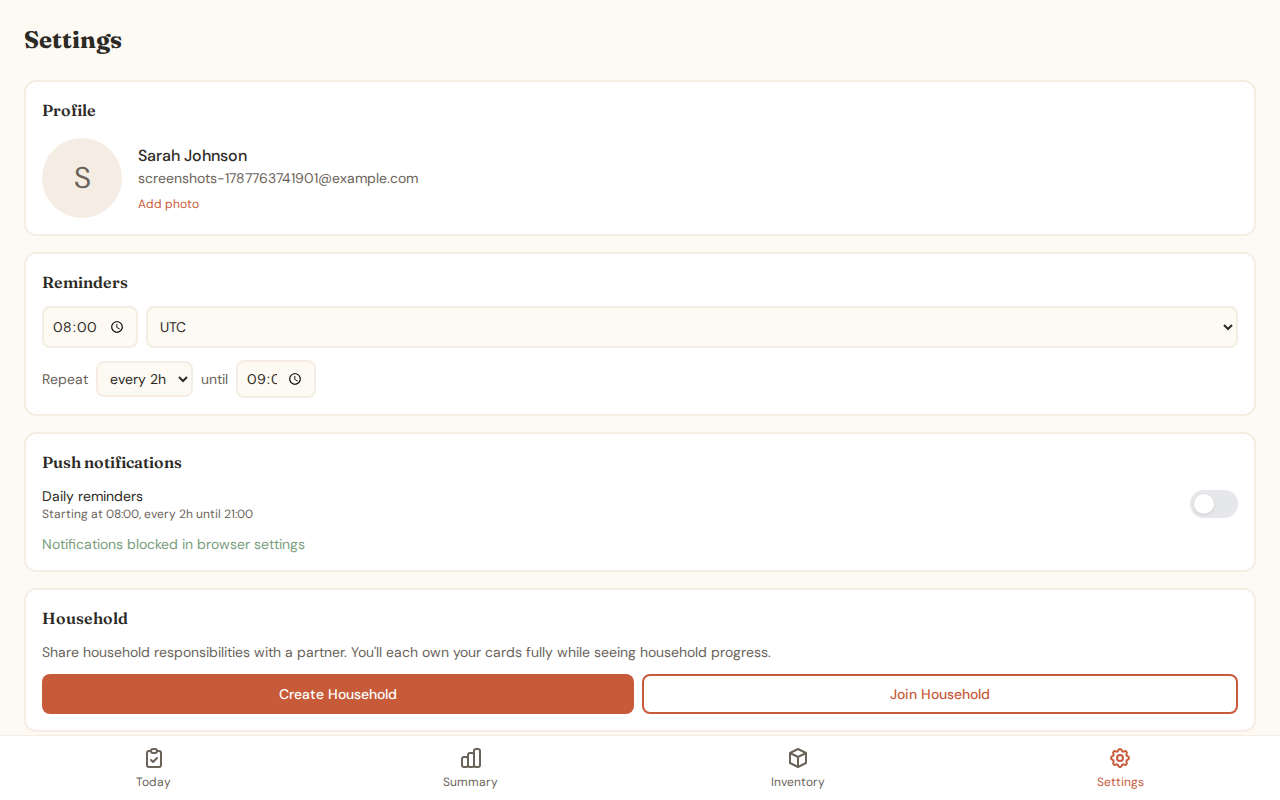
Reminders
Configure your notification time, timezone, and repeat interval.
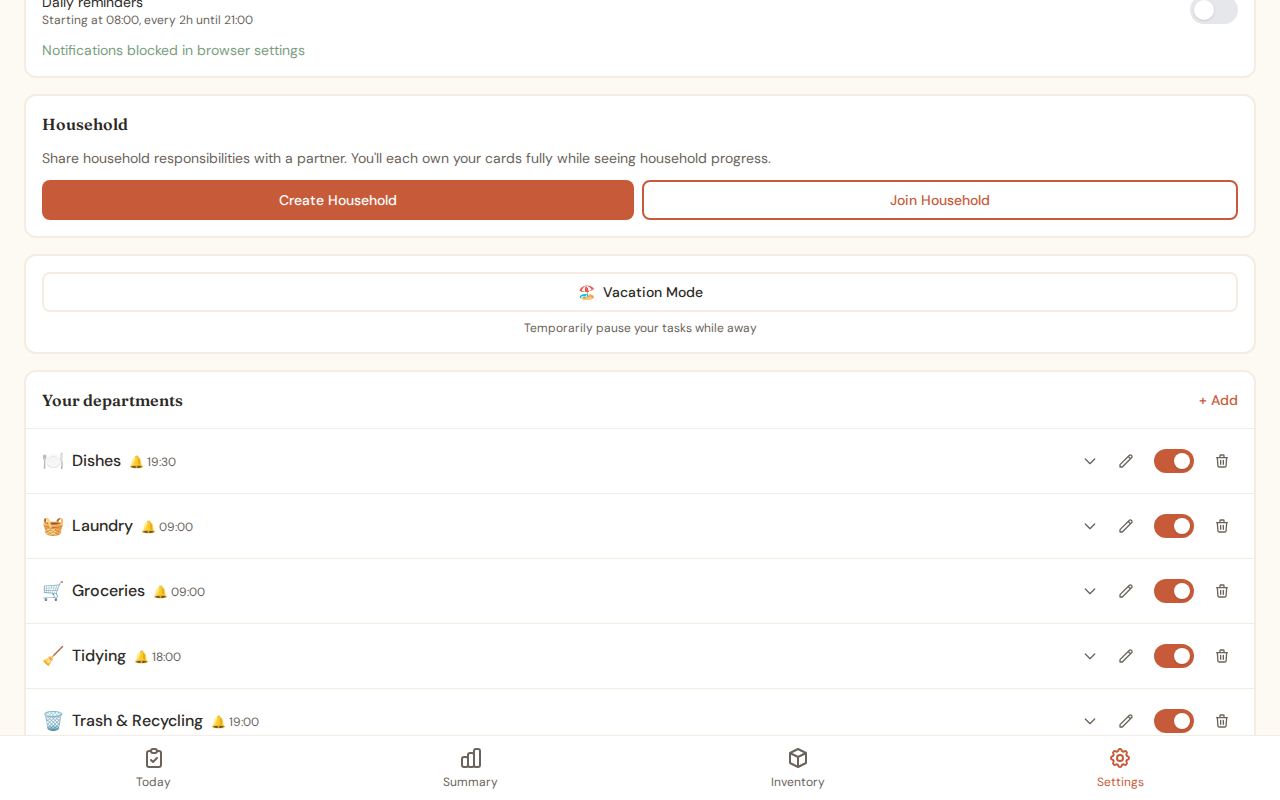
Departments
Manage your departments and their chores.
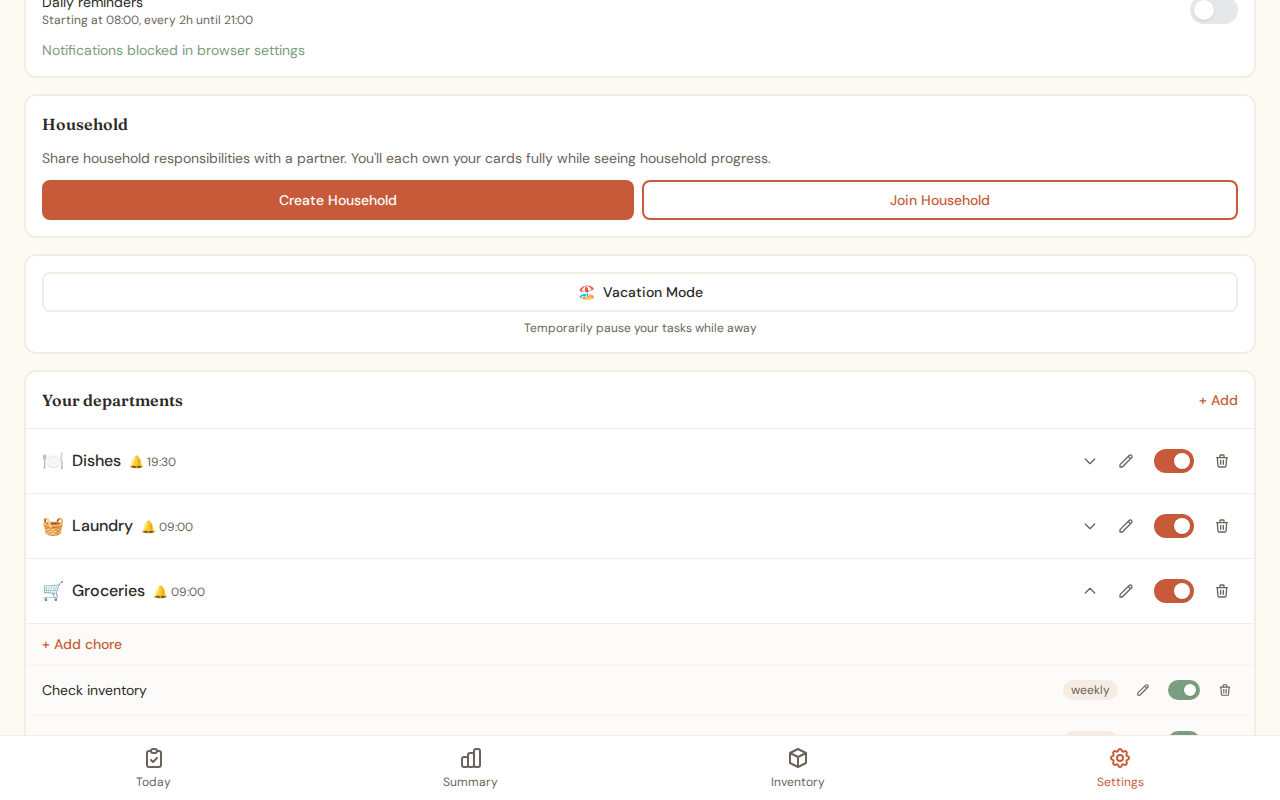
Expanded Department
View and edit chores within a department.
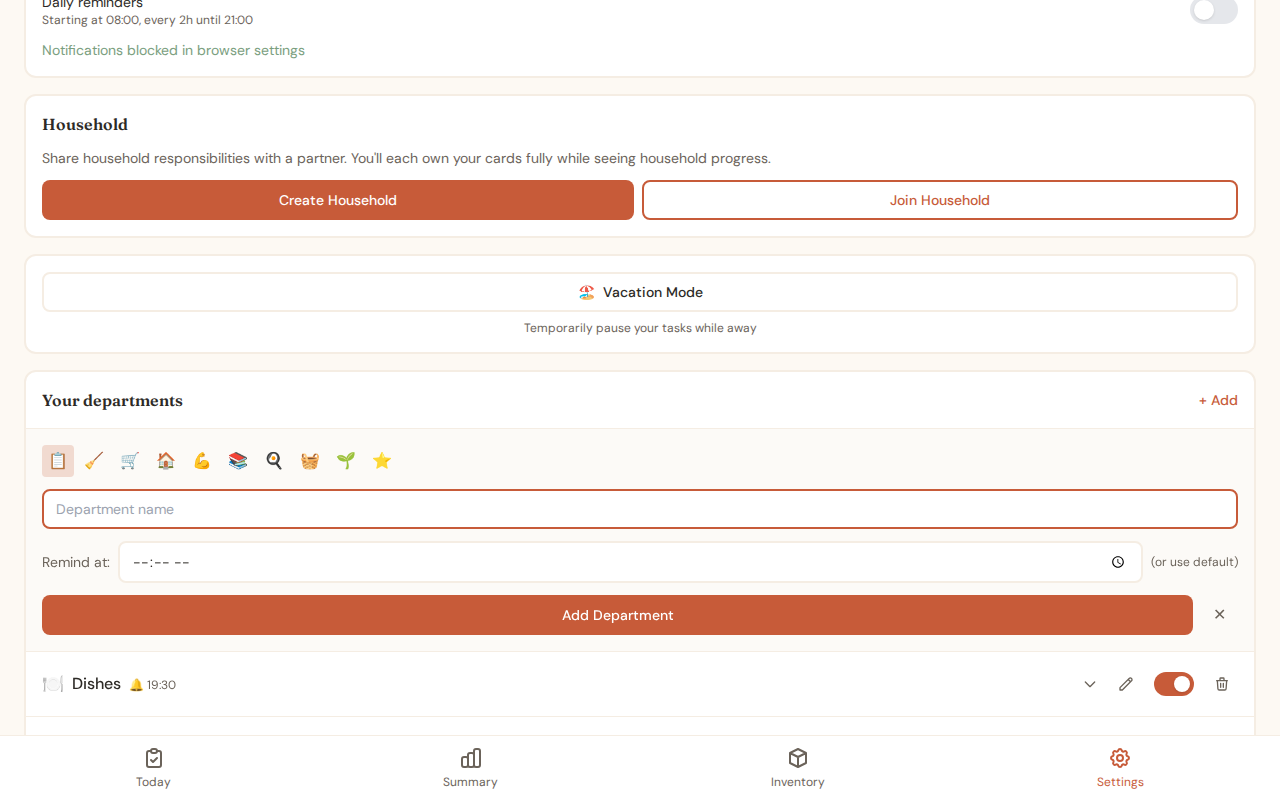
Adding Departments
Create new departments with custom names and emojis.
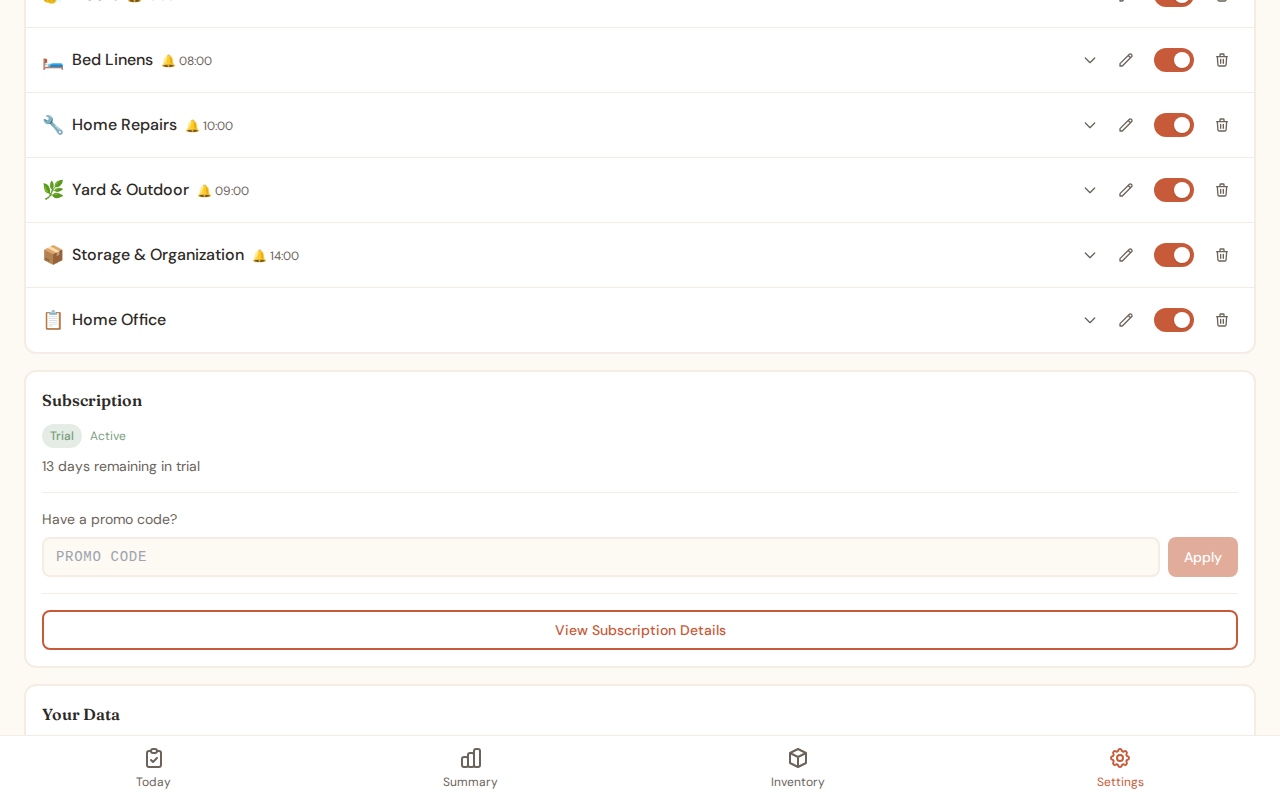
Subscription
View your subscription status and apply promo codes.
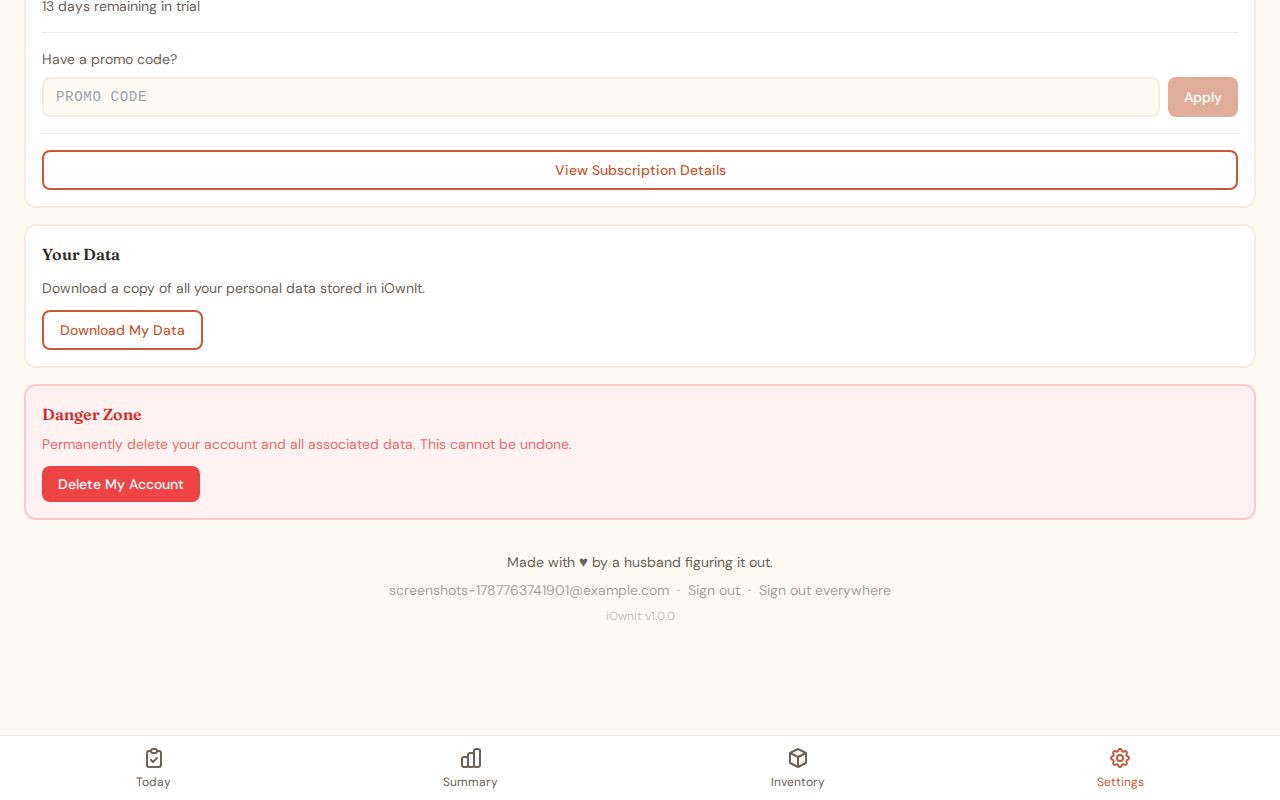
Danger Zone
Account deletion with confirmation safeguards.
Household Mode
Share responsibilities with a partner while maintaining full ownership of your cards.
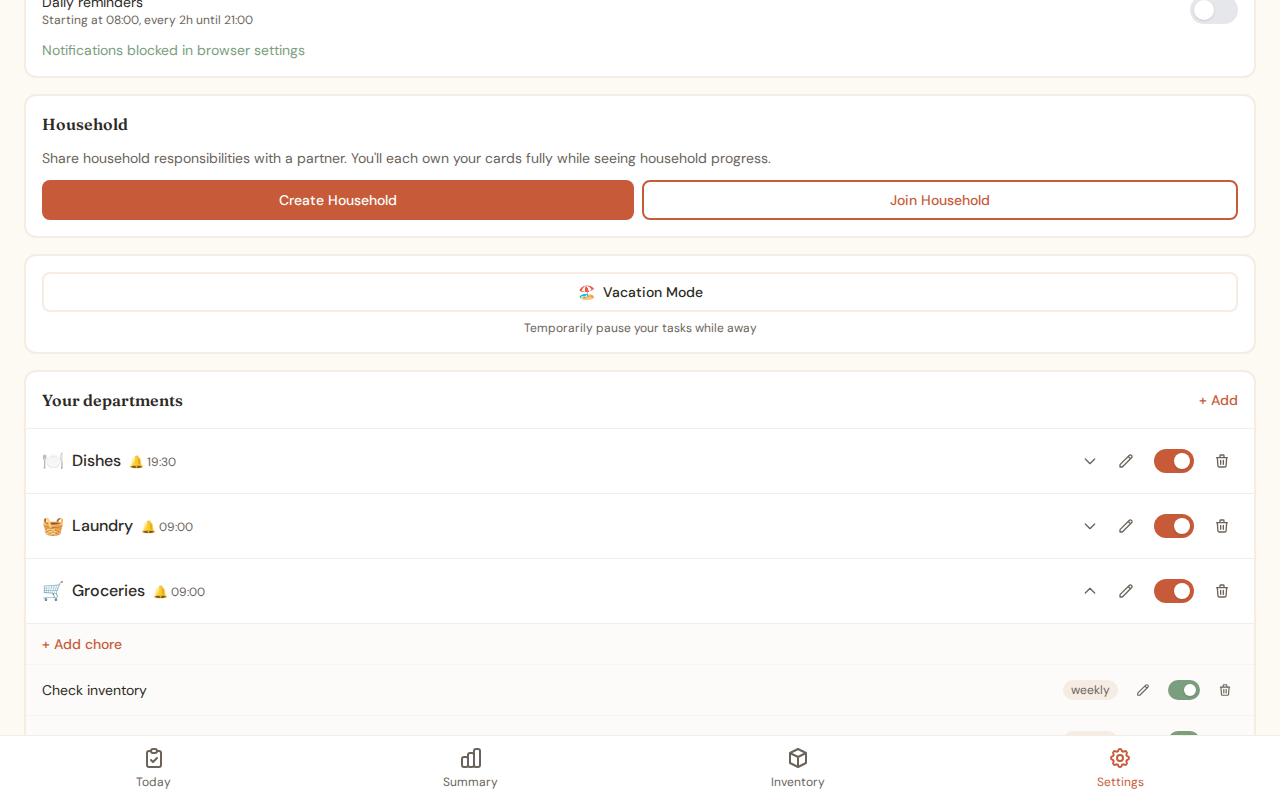
Solo Mode Household Section
Before joining or creating a household:
Household Dashboard
See both partners' progress at a glance.
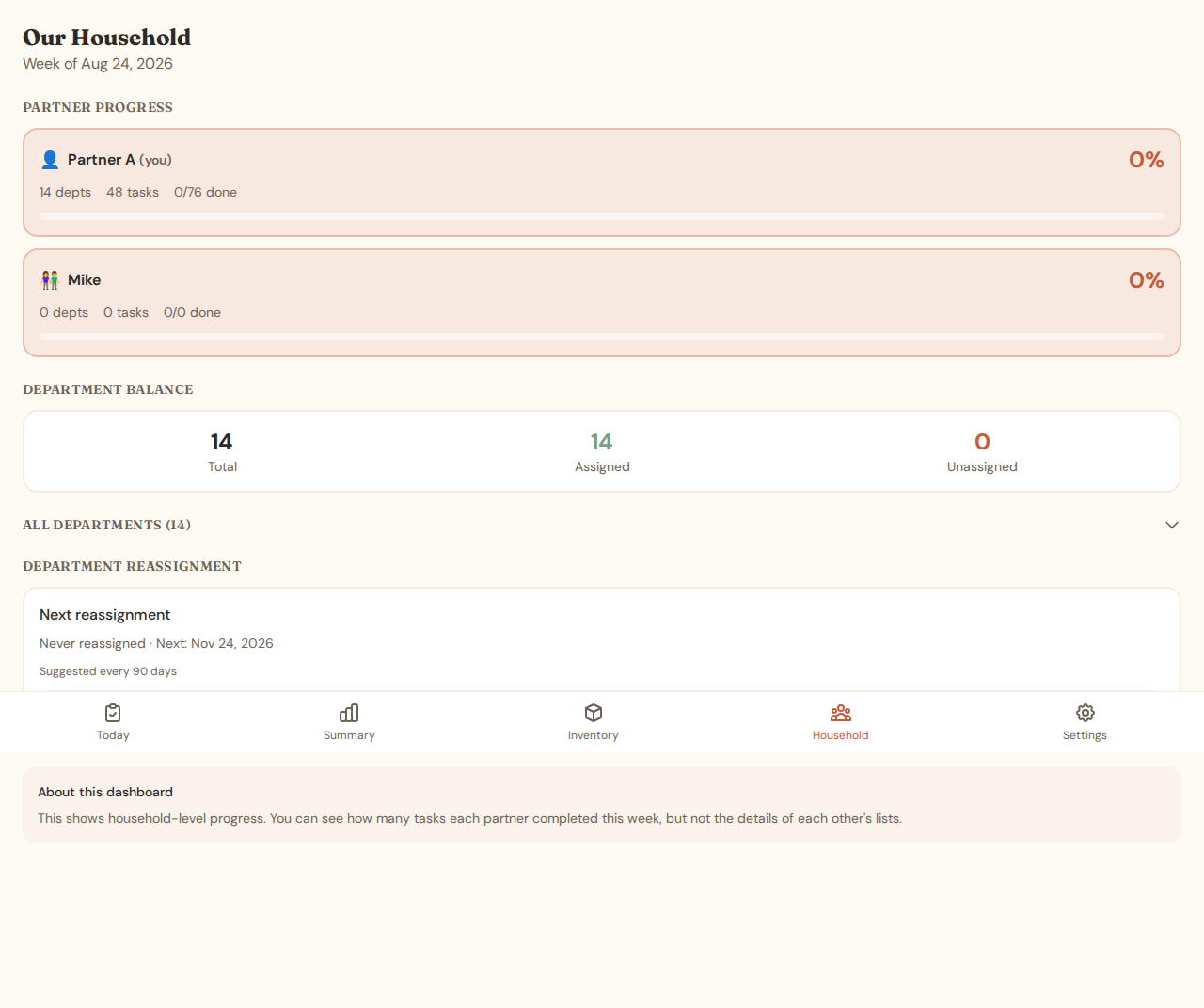
Workload Balance
Visual representation of how tasks are distributed between partners.
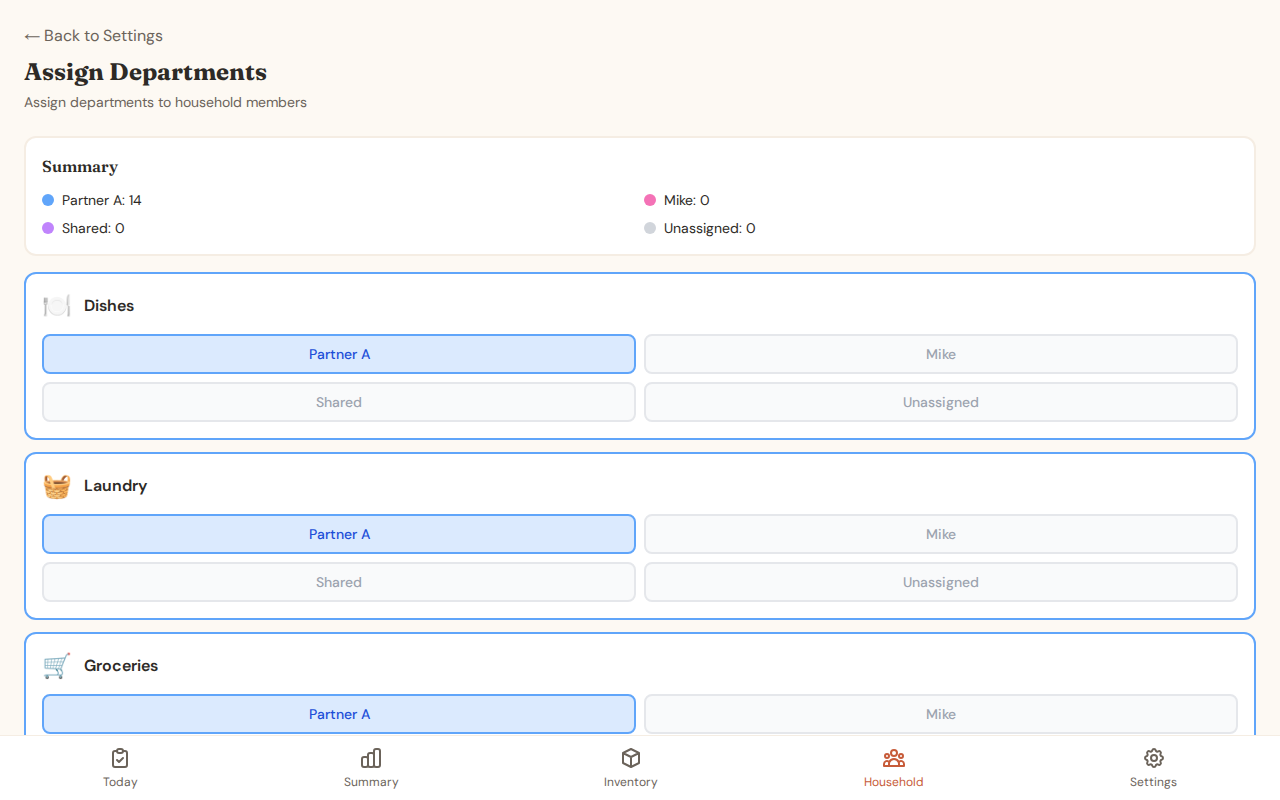
Card Dealing
Assign departments to each partner. Full ownership means thinking, planning, AND doing.
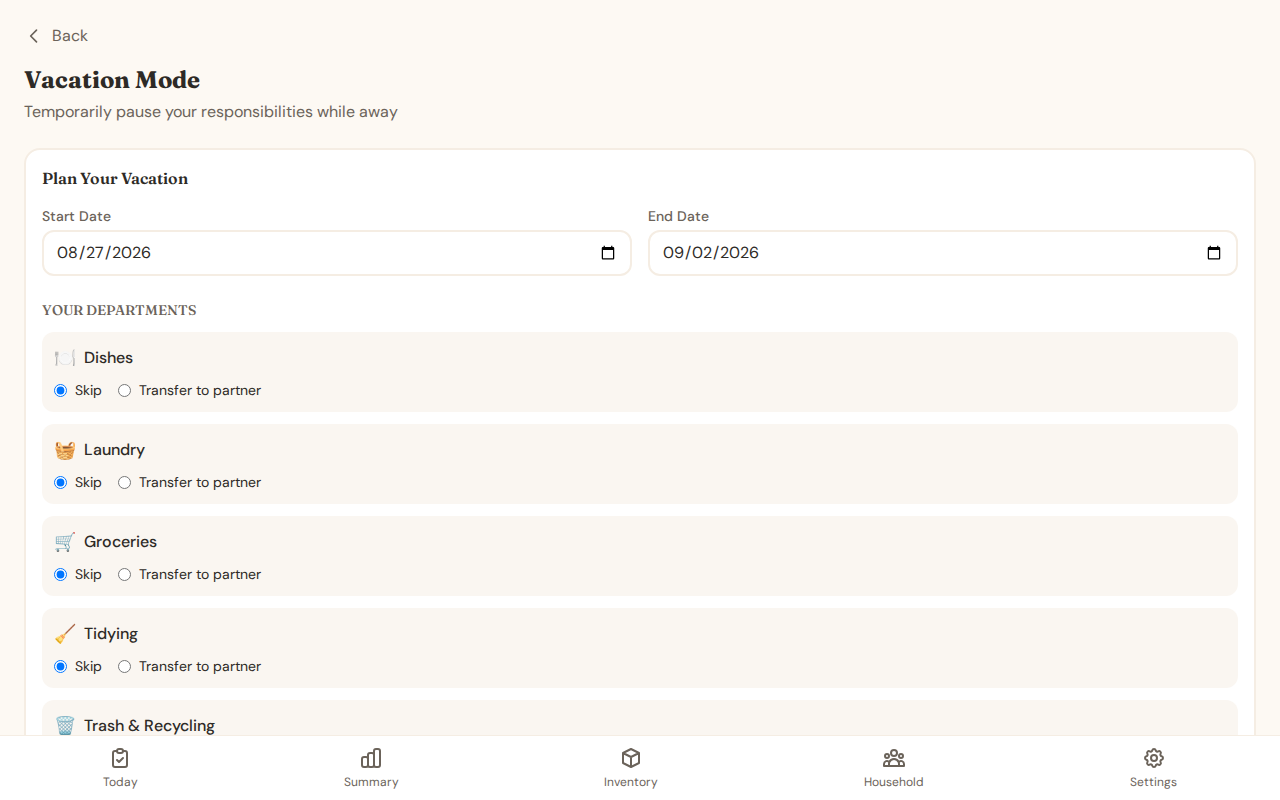
Vacation Mode
Temporarily pause your responsibilities while away.
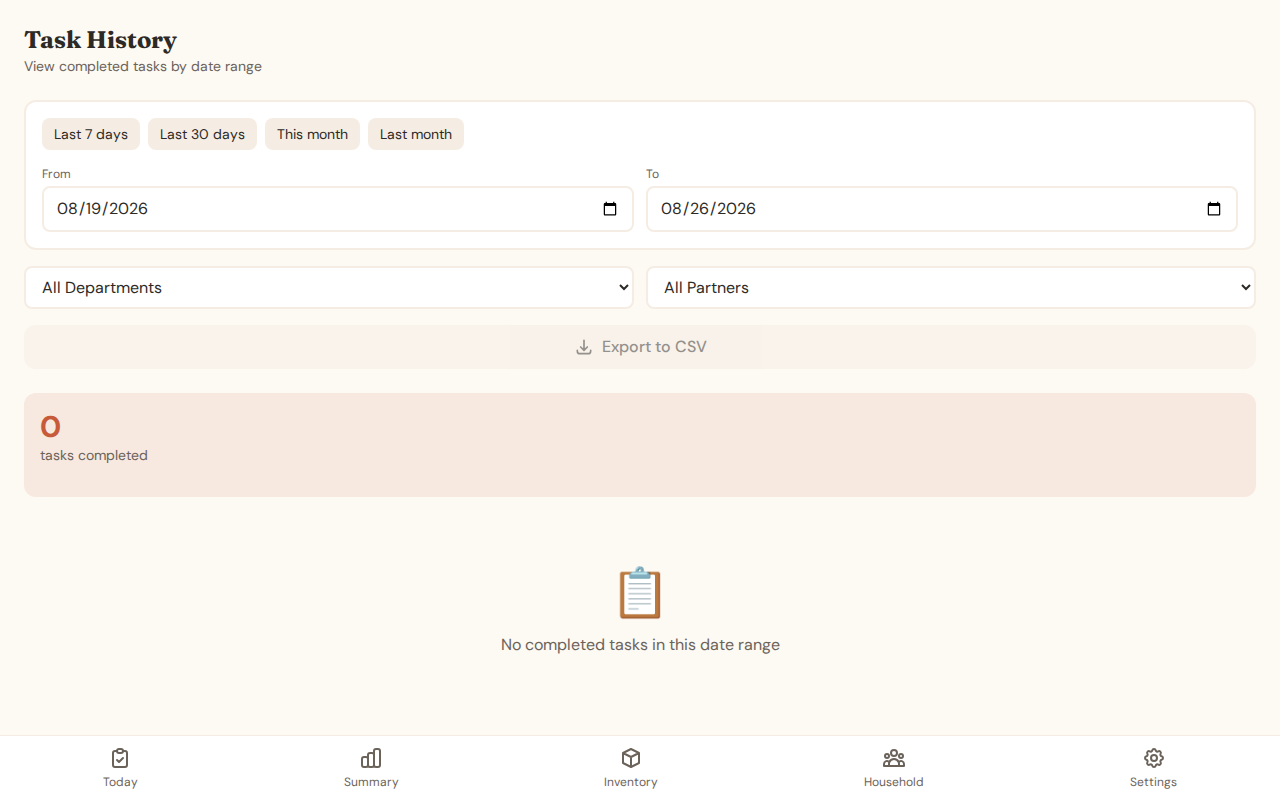
Task History
View historical completion data with filtering and export options.
Mobile Experience
iOwnIt is designed mobile-first for on-the-go task management.
Login (Mobile)
Today View (Mobile)
Summary (Mobile)
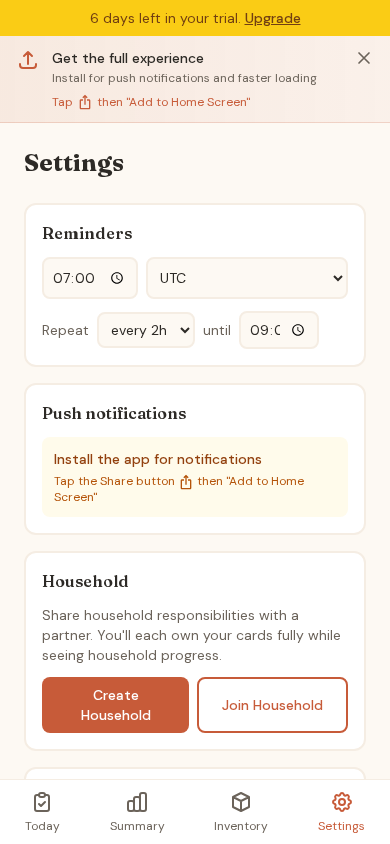
Settings (Mobile)
Install Prompt
On mobile browsers, you'll see a prompt to install the app for the best experience with push notifications.
Tips for Best Experience
- Install the App: On mobile, add to home screen for push notifications and faster loading
- Set Realistic Reminders: Choose a notification time that works with your routine
- Use Time Estimates: In Household mode, setting time estimates helps balance workload
- Review Weekly: Check the Summary view each week to spot patterns
- Re-deal Regularly: In Household mode, re-evaluate card assignments periodically